![Chalkstring Logo.png]](https://support.chalkstring.com/hs-fs/hubfs/Chalkstring%20Logo.png?height=40&name=Chalkstring%20Logo.png)
In this article
- What is the background rendering mode?
- How to change your background rendering mode
- When to use bitmap vs PDF
What is the background rendering mode?
You can choose how Chalkstring renders the background of your takeoff drawings. There are two options:
- PDF mode (default): Best for zooming into fine detail, but can be slower to load and navigate on complex drawings.
- Bitmap mode: Faster to load and navigate — ideal for large or complex drawings, or if you’re working on a lower-spec device.
Each mode offers different benefits depending on your drawing size, device performance, and how you prefer to work.
The rendering mode only affects how drawings appear on screen — it doesn’t change the underlying file or affect any PDF exports.
How to change your background rendering mode
To change your rendering mode:
- Open the drawing in takeoff.
- Go to the Display Layers panel (bottom-left of the screen).
- Click the cog icon to open Background Settings.
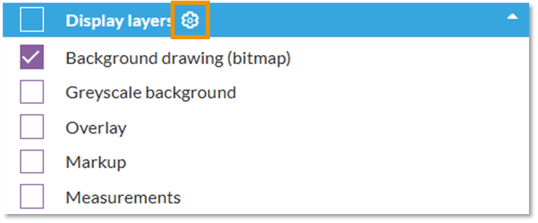
4. Choose either PDF or Bitmap mode.
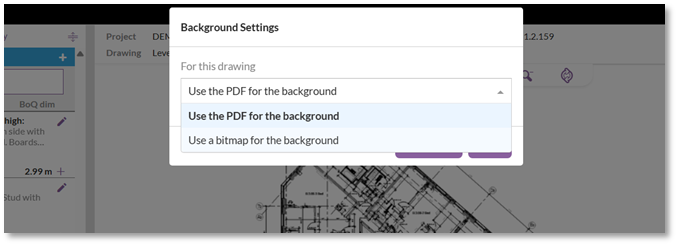
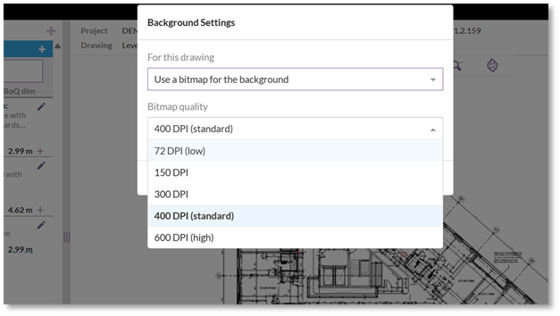
5. If you select bitmap, you’ll be prompted to choose a quality level (DPI):
-
- 72 DPI – fastest, lowest quality
- 150–300 DPI – good for most cases
- 400 DPI (standard) – recommended starting point
- 600 DPI – highest quality, may take longer to generate
-
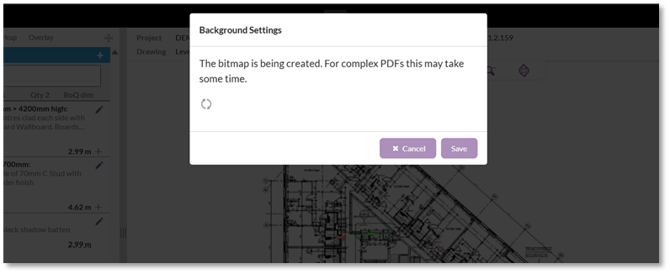
Once you make your choice, the system will either render the PDF or generate a bitmap. Bitmap generation happens once and is saved for future sessions.
-
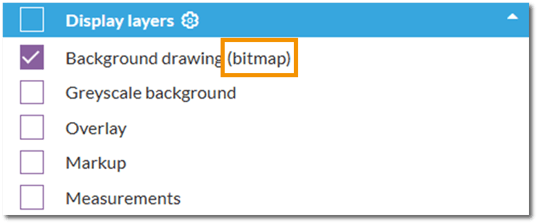
The Display Layers panel will show which mode you are currently using
-
Each drawing remembers your selection — and every user has their own preference. If someone else views the same drawing, they’ll see it in their preferred mode.
- If User A switches a drawing to bitmap, User B opening the same drawing will still see their own setting — which defaults to PDF unless they have changed it themselves
- This means different members of the same team may be viewing the same drawing in different modes — this is expected behaviour
When to use bitmap vs PDF
Use bitmap mode if:
- The drawing takes a long time to load
- Scrolling or zooming feels sluggish
- You're working on a very large or complex drawing
- You're on a lower-spec device
Use PDF mode (Default) if:
- You need to zoom into fine detail regularly
- You're working on smaller drawings
- You're not experiencing any performance issues
You can switch modes at any time.
PDF mode remains preferable for users who need to zoom in to very fine detail frequently, or who are working on simpler drawings without performance issues.
Known Limitations
- At high zoom levels in bitmap mode, pixelation of text and fine lines may be visible — this is expected and not a bug. Increasing the DPI setting reduces this effect.
- The per-user, per-drawing behaviour means the setting cannot be changed on behalf of another user — each user must set their own preference.
- Bitmap generation (on first use) may take longer for very complex or large PDFs.
FAQs
How do I switch between PDF and bitmap? Click the cog icon on the Display Layers panel, then select your preferred mode from the Background Settings modal.
Why would I use bitmap instead of PDF? Bitmap is faster to load and navigate, especially on lower-spec devices or complex drawings. PDF gives better zoom quality but can be slower on devices with less graphics capability.
Will switching to bitmap affect my PDF exports? No. The rendering mode only affects the on-screen display. PDF exports are not affected.
Does the bitmap need to be regenerated each time I open the drawing? No. It is generated once on first use and saved. Subsequent sessions will use the saved version.
I changed a drawing to bitmap but my colleague says it's still PDF — why? The setting is saved per user, per drawing. Each user's preference is stored independently. Your colleague will need to change their own setting if they want to use bitmap mode.
The drawing looks pixelated in bitmap mode — is this a bug? No. This is expected at very high zoom levels, particularly at lower DPI settings. Try increasing the DPI in Background Settings (the cog icon) — 400 DPI (standard) or 600 DPI (high) will reduce pixelation.
Want to know more?
