![Chalkstring Logo.png]](https://support.chalkstring.com/hs-fs/hubfs/Chalkstring%20Logo.png?height=40&name=Chalkstring%20Logo.png)
In this article
- Before you start
- Budget structure settings
- Default settings
- Budget groups
- Budget costs
- Revenue
- Using nominal codes
- Supply and Fit nominal codes
- Analysis Group flags
- Important considerations
- Want to know more?
Before you start
Before changing the Construct budget structure settings, you’ll need the following:
- Enabled feature: The Construct integration must be enabled for your Chalkstring account.
- Construct connection: Chalkstring must be successfully connected to Construct.
- User permissions: Your role must have Full access to the Construct setup permission under the Admin section. Speak to your system administrator if you require this permission.
Budget structure settings
To access the budget structure settings:
- Go to Settings>Admin.
- Select Construct setup.
- Select the edit pencil in the top-right corner of the page.
- Review or update the budget structure settings.
- Save your changes.
The Construct setup page initially opens in read-only mode. Selecting the edit pencil allows you to make changes and helps to prevent the settings being amended accidentally.
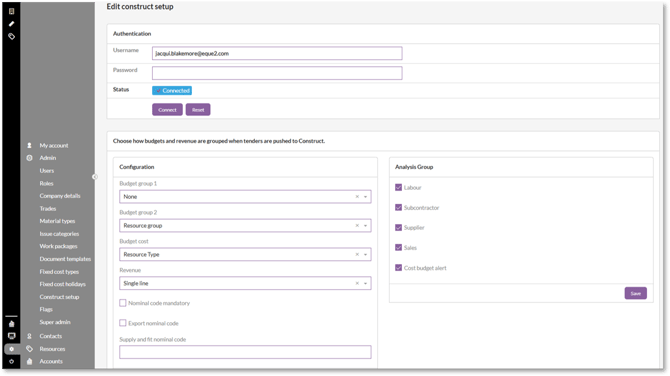
The settings determine how costs and revenue are grouped when an accepted tender is pushed to Construct. Any combination of settings can be saved, including setting each of the available dropdowns to none.
Default settings
The first time the Construct setup page is used, the budget structure options are set as follows:
- Budget Group 1: Project structure
- Budget Group 2: Resource group
- Budget Cost: None
- Revenue: Single line
- Nominal code mandatory: Unticked
- Export nominal code: Unticked
- Supply and fit nominal code: Blank
- Analysis Group flags: All enabled
These settings can be changed to suit how you want budget and revenue information to appear in Construct.
Budget Group 1
The Budget Group 1 setting controls the first level used to organise the budget in Construct.
The available options are:
- Project structure: Groups the budget using the project structure from Chalkstring, such as the assessments within the tender.
- None: Does not create a first-level budget grouping.
If None is selected, no Budget Group 1 structure is included in the data sent to Construct.
Budget Group 2
The Budget Group 2 setting controls the second level used to organise the budget in Construct.
The available options are:
- Zone: Groups the budget using the zones set up within the Chalkstring project.
- Nominal code: Groups costs according to the nominal code assigned to each cost type.
- Resource group: Groups costs by their main resource category, such as materials, labour or fixed costs.
- Resource type: Groups costs by the specific Material Type, Labour Trade or Fixed Cost Type used in Chalkstring.
- None: Does not create a second-level budget grouping.
The option you select determines how the budget is divided beneath Budget Group 1 when the tender information reaches Construct.
Budget Cost
The Budget Cost setting controls how individual costs are organised within the selected budget groups.
The available options are:
- Nominal code: Organises costs using the nominal code assigned to the relevant cost type.
- Resource type: Organises costs using the Material Type, Labour Trade or Fixed Cost Type from Chalkstring.
- None: Does not apply an additional cost grouping.
If nominal codes are used for grouping and a cost line does not have a nominal code, the line is placed under Unallocated in the structure sent to Construct.
Revenue
The Revenue setting controls how the tender’s revenue is grouped when it is sent to Construct.
The available options are:
- Single line: Sends the tender revenue as one overall revenue line.
- Budget Group 1: Groups revenue using the structure selected for Budget Group 1.
- Budget Group 2: Groups revenue using the structure selected for Budget Group 2.
- None: Does not include a revenue grouping.
Select the option that most closely matches how you want the contract revenue to be structured in Construct.
Using nominal codes
Cost lines take their nominal codes from the type assigned to them in Chalkstring:
- Material costs use the nominal code assigned to the relevant Material Type.
- Labour costs use the nominal code assigned to the relevant Labour Trade.
- Fixed costs use the nominal code assigned to the relevant Fixed Cost Type.
The Construct setup page includes two additional nominal code options.
Nominal code mandatory
Select Nominal code mandatory if every cost line must have a nominal code before a tender can be pushed.
When this option is selected, Chalkstring prevents the push if:
- A cost line does not have a nominal code.
- The Supply and fit nominal code field is blank where Supply and Fit costs are included.
The missing nominal codes must be added before the tender can be pushed.
If Nominal code mandatory is not selected, cost lines without a nominal code can still be pushed. Where nominal codes are used for grouping, these lines appear under Unallocated.
Export nominal code
Select Export nominal code to include nominal codes in the information sent to Construct.
This setting only controls whether the nominal code is included in the exported data. It does not make nominal codes mandatory and does not affect the checks performed before the tender is pushed.
Nominal codes can be exported even if none of the budget structure options are set to group by nominal code.
Supply and Fit nominal codes
Supply and Fit costs use the nominal code entered in the Supply and fit nominal code field on the Construct setup page.
All Supply and Fit lines use this single nominal code. Individual nominal codes cannot currently be assigned to separate Supply and Fit lines.
If Nominal code mandatory is selected and the tender contains Supply and Fit costs, the tender cannot be pushed until a Supply and Fit nominal code has been entered.
Analysis Group flags
The Analysis Group flags tell Construct what type of cost or revenue information is being sent. This allows Construct to treat each row appropriately within the application.
For example, enabling the Supplier flag allows supplier budget lines to be made available when raising material orders in Construct.
The available flags are:
- Labour
- Subcontractor
- Supplier
- Sales
- Cost Budget Alert
Each flag can be switched on or off from the Construct setup page.
The selected flags are applied to rows automatically based on the type of cost being pushed. They do not need to be configured separately for each project or tender.
When the Construct setup page is used for the first time, all five Analysis Group flags are enabled by default.
Important considerations
- Account-wide settings: The selected structure is used when tender information is pushed from Chalkstring to Construct. Review the settings before pushing your first tender.
- Unallocated costs: Where nominal codes are used for grouping, cost lines without a nominal code are grouped under Unallocated, unless nominal codes have been made mandatory.
- Contingency amounts: Contingency amounts cannot currently be assigned a nominal code. They are treated as Unallocated and do not prevent a tender from being pushed, even when Nominal code mandatory is selected.
- Supply and Fit costs: All Supply and Fit lines use the single nominal code entered on the Construct setup page.
- Flexible structure: Any combination of settings can be saved, including selecting None for every budget and revenue dropdown.
- Future pushes: Changes to the settings affect future pushes. A tender already pushed to Construct is not updated automatically.
