![Chalkstring Logo.png]](https://support.chalkstring.com/hs-fs/hubfs/Chalkstring%20Logo.png?height=40&name=Chalkstring%20Logo.png)
In this article
- What is the client bill import and when to use it
- How to import a client bill from Excel
- Selecting data from your spreadsheet
- Mapping your spreadsheet columns to Chalkstring
- Exporting tender documents
- FAQs about importing client bills
- Want to know more?
What is the client bill import and when to use it
The client bill import feature lets you import a bill of quantities directly from a client's original Excel spreadsheet — without needing to reformat it into Chalkstring's template.
It’s especially useful when your client provides a formatted Excel bill and you want to start building your assessment quickly, without having to manually restructure the data or retype it.
This feature is ideal for:
- Starting new assessments using the client’s exact bill format
- Quickly pulling in large volumes of grouped product lines
- Saving time on data entry and avoiding manual errors
How to import a client bill from Excel
To import a client bill using this feature:
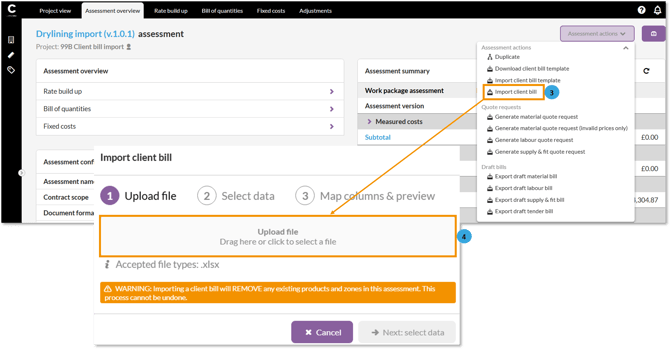
- From the Assessment Overview page.
- Click the Assessment Actions menu.
- Choose Import client bill from the menu.
- Upload your client’s bill file.
Selecting data from your spreadsheet
Once the file is uploaded, you’ll be guided through an import wizard.
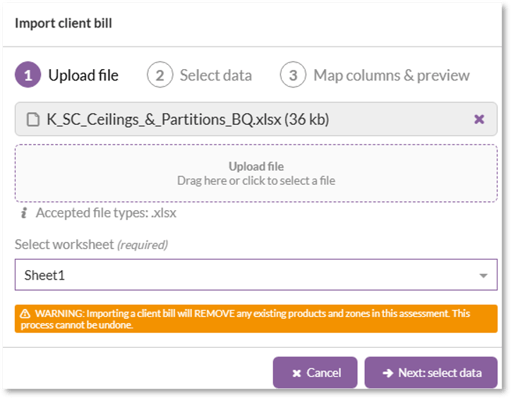
Step 1 : Choose worksheet
- If your spreadsheet has multiple tabs, select the correct worksheet containing the bill.
- Click Next: select data.
Step 2: Choose format
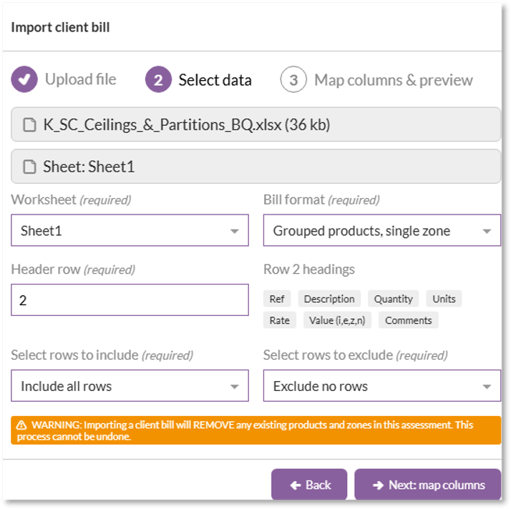
- Choose the header row that contains the column headings (Chalkstring will attempt to detect this).
- Define the data range — you can exclude any rows that contain notes or preambles if they aren’t part of the bill.
- If the bill includes separate quantities per zone, select Multiple zones from the 'Bill format' dropdown.
- Click Next: map columns
Tip: Rows that contain merged cells or unusual formatting may need to be excluded manually.
Mapping your spreadsheet columns to Chalkstring
Step 3 & 4: Map the columns and preview
- You’ll be shown the columns from your selected data range.
- Use the dropdown menus to map each column to the relevant Chalkstring field (e.g. name, quantity, unit, rate, etc.)
- You can leave unnecessary columns unmapped.
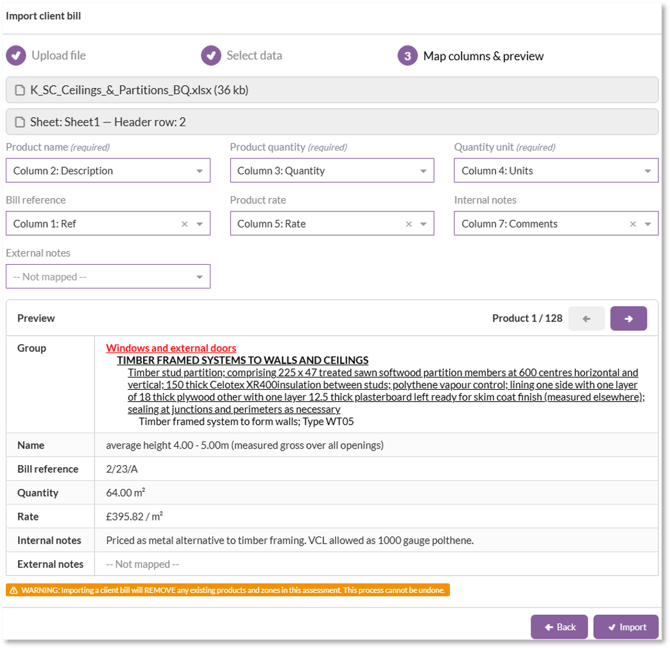
- A preview table will show how your products and groups will be created.
- Check this preview to confirm the structure looks correct before proceeding.
- When you're ready, click Import.
- Create groups and subgroups based on formatting
- Add product lines and set rates if included
- Send you directly to the Rate Build Up screen where you can continue editing
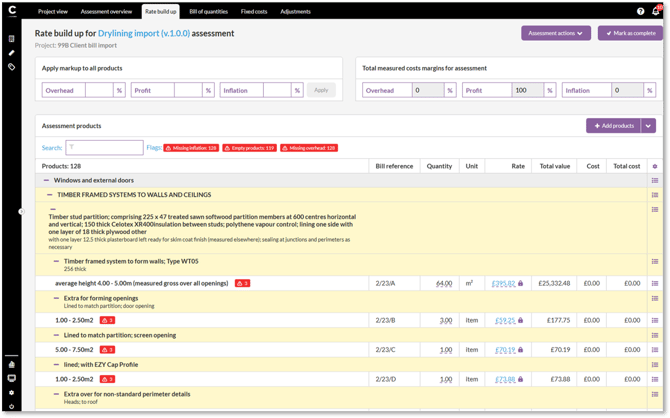
Imported products are set to fixed rate by default if rates are included. You can then add build-ups or replace these products with templates from your library.
Exporting tender documents
Chalkstring provides a number of different tender document formats.
If you want the groups created during the client bill import (or any groups you create manually) to appear on your exported tender document, you'll need to select one of the grouped tender document formats.
To do this:
- From the Assessment Overview page, open Assessment configuration.
- Locate the Document format setting.
- Select one of the Grouped Products document formats.
If you continue to use the standard Products x Zones | Bill format, only the product details will be displayed on the exported document, even if groups have been created within the assessment.
For more information about the grouped tender document formats, see:
FAQs about importing client bills
-
Do I still need to use the Chalkstring template?
No — this import option works directly with the client’s own spreadsheet. The original Chalkstring import/export template is still available if needed.
-
Will my spreadsheet be changed?
No — Chalkstring reads from the file but does not alter it.
-
What happens if my file has more than one worksheet?
You can choose the worksheet during Step 1 of the import process.
-
Can I import zone-based quantities?
Yes — tick the Multiple zones option when selecting your data range. This is useful when your client’s bill includes separate quantities per zone.
-
Why don’t I see the “Import client bill” option?
This feature is being rolled out gradually and may not yet be enabled on your account. Contact support if you’d like to take part in early access.
-
Can I change the imported data after import?
Yes — once the bill is imported, you can edit groups, products, and rates directly in the Rate Build Up screen.
