![Chalkstring Logo.png]](https://support.chalkstring.com/hs-fs/hubfs/Chalkstring%20Logo.png?height=40&name=Chalkstring%20Logo.png)
In this article
What is the greyscale background display and when to use it
If you’re working with colour-coded drawings, it can sometimes be hard to distinguish your own measurements from the background. Switching the background to greyscale helps make your coloured measurements stand out — making it easier to see what’s been measured and spot any gaps.
This can be especially useful on busy drawings or when reviewing work before export.
How to enable greyscale background
You can toggle the greyscale view from the Display Layers panel in any of the Takeoff tabs — including Measure, Markup, Overlay, Issues, and Progress.
- In the bottom left corner, tick the checkbox for Greyscale background underneath the Background drawing option.
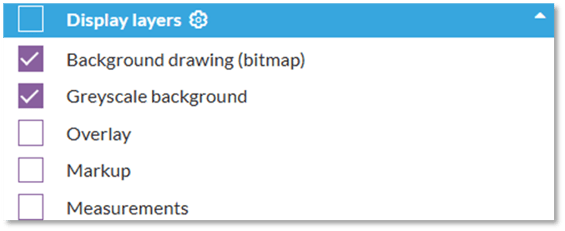
2. The background drawing will switch to greyscale while your measurements remain in full colour.
- The setting is saved for each drawing individually and will still be applied the next time you return to it.
- When you export the drawing to PDF, the greyscale setting will also be applied to the export.
