![Chalkstring Logo.png]](https://support.chalkstring.com/hs-fs/hubfs/Chalkstring%20Logo.png?height=40&name=Chalkstring%20Logo.png)
In this article
- Components in a rate build up
- Components structure - self delivered
- Components structure - supply & fit
- Want to know more?
Components in a rate build up
Before reading this article, you should have a good understanding of how to set up rate build ups in Chalkstring - see article 'How to set up a rate build up'.
Every product must have a minimum of one component as a default, and each component can consist of materials and labour activities. Chalkstring requires all components to have at least one labour activity, because whether you are self-delivering the product, or subcontracting the product on a full supply & fit basis, you will always have to pay someone to provide the elements contained within the component of the product.
Components structure - self delivered
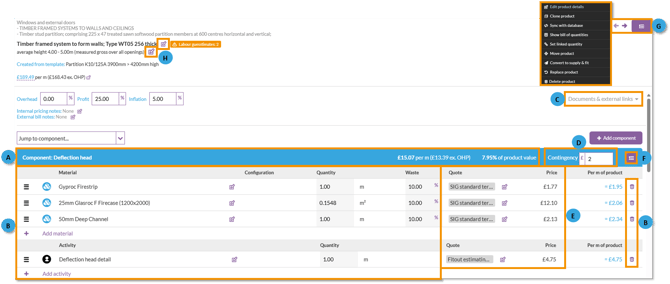
A. Component name - This is the name given for the component. The value and percentage per component displayed is calculated from the quantities and quotes from its materials and labour activities included in the component
B. Materials and labour - A list of labour activities (black) and materials (blue) for the component:
- Swap - Clicking the edit pencil next the material or activity will allow you to swap the item with another from your material or labour databases.
- Delete - Clicking the delete icon will remove the material or activity from the component.
Swapping will maintain the quantities allowed per unit of product, unless you choose to change them.
- Waste - Each material within the components will have a waste allowance which can be adjusted on a per component basis. This enables you to be much more accurate about the waste you allow on materials in the context of the products they are being used for.
For example, when boarding a continuous wall with no openings you may reduce the amount of waste being allowed, but a similar wall with lots of windows and doors being measured, may have a much higher waste allowance on the same materials.
- Quantity - The quantity required of the material or activity required per unit of the product can be entered/updated here on a per component basis.
- Order - Materials and activities can be reordered by clicking the 3 lines icon to the left of each item and dragging and dropping to the required position.
C. 'Documents & External Links' - This section allows you to add, view and delete attachments and links.
For example, architectural specification extracts, drawings, links to BIM model data, links to system manufacturers' websites or links to YouTube videos.
D. Contingency Budget - This is the level of contingency allowed per component.
Contingency is a ‘cover all’ pot of money that will be available to users onsite to purchase and pay for anything that hasn’t been specifically identified within the scope of the rate build ups. This may include items such as PPE, fixings, sealants and adhesives, plant or some day work. It can be anything you need to cover costs for, but don’t have the information or inclination to specifically quantify within your product rates.
E. Quotes - Prices can be applied and adjusted for each labour and material item. To adjust or select a quote, click the edit pencil icon and select from the available quotes or add a 'Guesstimate'.
F. Component menu - Each component within a product has its own sub-menu with a list of options.
- 'Add material' – Use this to add in additional materials.
- 'Add labour activity' – Use this to add in additional labour activities.
- 'Scale quantities' - Use this to multiple by or divide the quantities of the materials and labour activities within the component.
- 'Move component' – Use this to reorder the components to reflect a different build sequence onsite.
- 'Rename component' – You can change the name of the component as required.
This is particularly important if you are using the 'Component x zones | Grid | Vales' format for your tender document exports. See article How to use a 'Components x zones' format when exporting tender & application documents for further details.
- 'Delete component' – Use this to remove an entire component from a product whilst retaining all the rest.
G. Product menu - Each product has it's own sub-menu with a list of options. Hover your mouse over the 'Product actions' button to access these options.
- Edit product details – This option opens a window where you can edit the product details used within the current Rate Build Up. This includes changing the product's quantity unit without affecting the original product template in your product database. If the option is greyed out, clicking on the button will a tooltip explaining why the function isn't available for that product.
Note: If you change the quantity unit, the material quantities, labour quantities and bill quantities are not automatically recalculated to match the new unit. You'll need to review and update these values manually to ensure they remain correct.
- Clone product - This will present a pop up box where you can create multiple clones of the original product with the rate build, along with an option to also copy any existing quantities currently set for the original product.
- 'Sync with database' – This will save any changes made to the product within the rate build up to your product template database.
- Updating the existing template - This will overwrite the changes you have made to the product in the rate build to the template in the product template database.
- Create a new template from this product - This will save a copy of the product as new product in your product template database.
When products are changed within the rate build up section, for project specific reasons, the changes only affect this rate build up. If the changes you are making result in a new product that would be useful to other users and on other projects or assessments, the amended version can be ‘synced’ with the main database and a copy made available in the product library.
- Show bill of quantities – This option presents a pop up box where quantities per zone can easily be added within the rate build up without having to navigate to the separate bill of quantities section.
- Set linked quantity - This option allows you to designate a main product as the source product, to which other dependent products can be linked. When you update the quantity of the source product, all linked dependency products quantities will be automatically adjusted.
- Move product - This option presents a pop up box where products can be moved into a different order. This is the order in which the rate build up with be outputted when it is exported. You can also use this menu to add a product into a group.
- Convert to supply & fit or Convert to materials & labour – This allows you to switch an individual product between 'Supply & Fit' or to 'Materials & Labour'.
- Replace product – Replace an existing product with another from your product database while retaining any bill quantities that have already been measured against the original product. When replacing a product, you can choose whether to keep the existing product name or use the name from the replacement product. You can also choose whether to keep the current unit of measure already in use, or change it to the unit of measure defined on the replacement product. This allows you to use products saved with different units of measure without having to change the unit already being used in your Rate Build Up.
- Delete product – You can remove a product from a package assessment in its entirety, including bill of quantities entries.
Components structure - supply & fit
As a supply & fit main contractor, it is likely that you won't know exactly what is required for each component of work. However in Chalkstring, components are still part of a product and are included in the rate build up because component structuring helps you to track onsite progress accurately and easily. 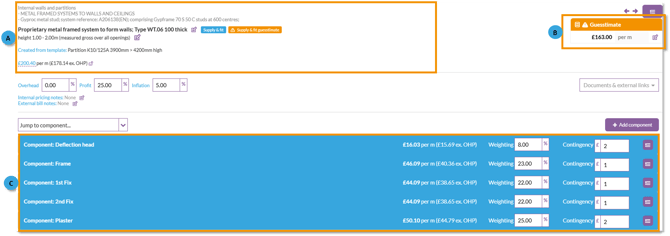
When the product is converted to supply & fit, the component section will show:
A. Product details - The rate and details of the product
B. Quote - Prices can be applied and adjusted for each labour and material item. To adjust or select a quote, click the edit pencil icon and select from the available quotes or add a 'Guesstimate'.
C. Components - A list of components for the product with a component weighting as a percentage in relation to the stated rate. This percentage weighting is used when providing supply & fit quotes and is set automatically when the quote is applied to the assessment. This is useful as subcontractors will be asked to define this percentage.
Any product which already exists without having this weighting set, will default apportion the percentages equally allowing users to manually change as required.
- 'Move component' – Use this to reorder the components to reflect a different build sequence onsite.
- 'Rename component' – You can change the name of the component as required.
- 'Delete component' – Use this to remove an entire component from a product whilst retaining all the rest.
Want to know more?
