![Chalkstring Logo.png]](https://support.chalkstring.com/hs-fs/hubfs/Chalkstring%20Logo.png?height=40&name=Chalkstring%20Logo.png)
In this article
- What is the setting scale feature?
- How to set the scale by measurement
- How to set the scale by value
- Want to know more?
What is the setting scale feature?
When adding or editing a drawing in Takeoff, the scale needs to be set before measurements can be taken accurately. The setting scale window now gives you two options:
- By measurement
- By value
By measurement allows you to set the scale by selecting two points on the drawing and entering the known measurement.
By value allows you to set the scale by selecting a standard scale from a dropdown list. This is useful when the drawing clearly states the scale, such as 1:50 or 1:100, but there is no known measurement available to use on the drawing.
How to set the scale by measurement
When first opening a new drawing, the setting scale window will open.
By measurement will be selected by default.
To set the scale by measurement:
- Click to select the start point of the known measurement on the drawing.
- Click to select the end point of the known measurement on the drawing.
- Enter the value of the measurement.
- Click Done.
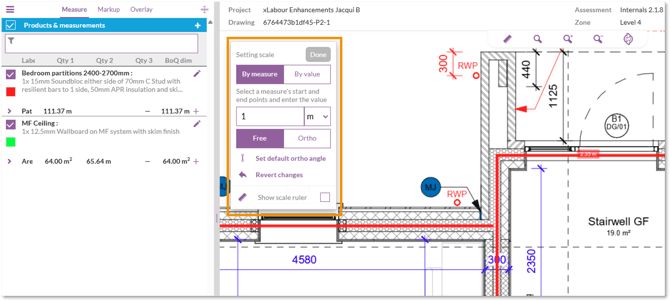
Once the scale has been applied, it will be shown on the Takeoff screen for reference.
If you need t edit an existing scale, you can reopen the setting scale window by clicking the 'Ruler' icon in the top middle row of buttons.
How to set the scale by value
Note: the By value option is only available for drawings uploaded from 28 September 2026 onwards. For drawings uploaded before this date, only the By measurement option will be shown.
When first opening a new drawing, the setting scale window will open.
To set the scale by value:
- From the setting scale window.
- Select By value.
- Choose the required scale from the dropdown list.
- Click Done.
The available scale options are:
- 1:1
- 1:2
- 1:5
- 1:10
- 1:20
- 1:50
- 1:100
- 1:200
- 1:500
- 1:1000
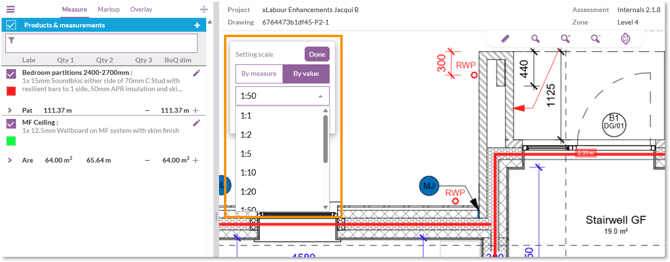
Only the scales listed in the dropdown can be selected. If the scale you need is not listed, use By measurement instead.
Once the scale has been applied, it will be shown on the Takeoff screen for reference.
If you need t edit an existing scale, you can reopen the setting scale window by clicking the 'Ruler' icon in the top middle row of buttons.
