![Chalkstring Logo.png]](https://support.chalkstring.com/hs-fs/hubfs/Chalkstring%20Logo.png?height=40&name=Chalkstring%20Logo.png)
In this article
- Before you connect
- Connecting your account to Construct
- Testing the connection
- Resetting the connection
- Linking a group company to Construct
- Changing or removing a company link
- Troubleshooting
- Want to know more?
Before you connect
-
Before connecting Chalkstring to Construct, you’ll need the following:
- Enabled feature: The Construct integration must be enabled for your Chalkstring account. Contact Chalkstring support at help@chalkstring.com if you would like to use the integration.
- User permissions: Your role must have Full access to the Construct setup permission under the Admin section. Speak to your system administrator if you require this permission.
- Construct login details: You’ll need the username and password for a Construct account that has access to the companies you want to link.
- Finance integration: Only one finance integration, either Construct or Xero, can be enabled for your Chalkstring account.
Note: If the integration has not been enabled for your account, the Construct screens, buttons and status fields will not be visible.
Connecting your account to Construct
To connect your Chalkstring account:
- Go to Settings> Admin.
- Select Construct setup.
- Select the edit pencil in the top-right corner of the page.
- Enter your Construct username and password.
- Select Connect.
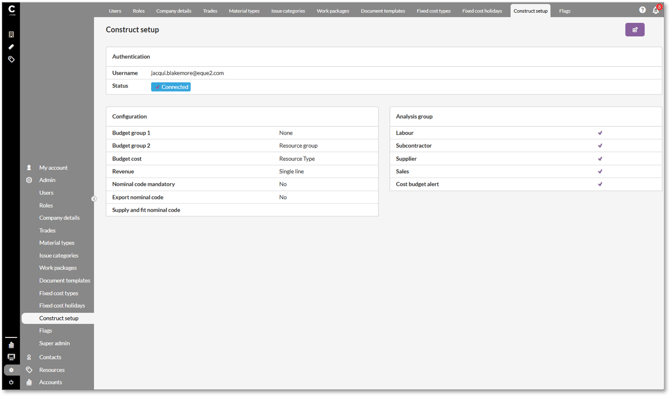
The Construct setup page initially opens in read-only mode. Selecting the edit pencil allows you to make changes and helps to prevent the connection details being amended accidentally
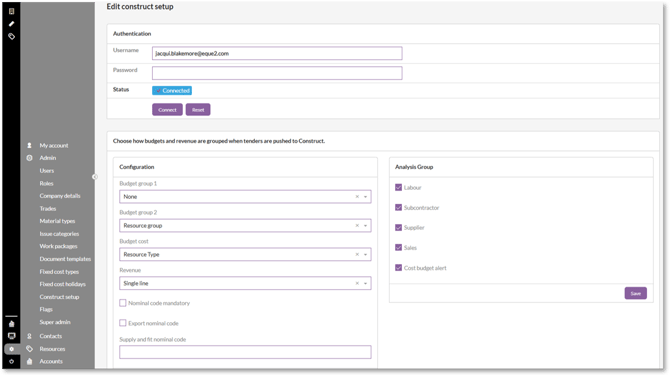
Testing the connection
When you select Connect, Chalkstring checks the username and password entered.
If the connection is successful:
- The status changes to Connected.
- A confirmation is displayed.
- Chalkstring retrieves the list of Construct companies available to that login.
If the connection is unsuccessful, check the username and password, then try again. Chalkstring displays a general message when a connection test fails, rather than the specific reason for the failure.
Once connected, the connection remains active until someone selects Reset. It does not need to be refreshed periodically.
Resetting the connection
To remove the current Construct connection:
- Go to Settings>Admin.
- Select Construct setup.
- Select the edit pencil.
- Select Reset.
- Confirm that you want to reset the connection.
After resetting, the status changes to Not connected. You’ll need to enter the Construct login details and connect again before group companies can be linked.
Linking a group company to Construct
Once the account shows as Connected, each Chalkstring group company must be linked to its corresponding Construct company.
To link a company:
- Go to Settings>Admin.
- Select Company details.
- Select the Chalkstring group company you want to link.
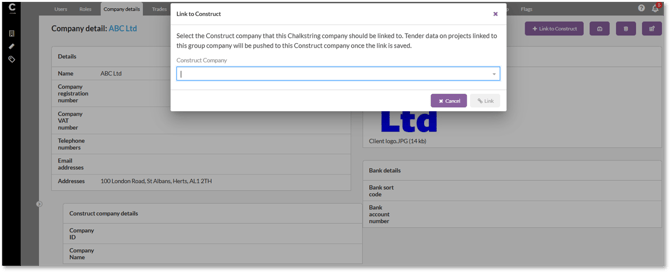
- Select Link to Construct.
- Choose the appropriate Construct company from the dropdown list.
- Select Link.
You do not need to enter a Construct company ID manually. Chalkstring retrieves the companies available to the connected Construct login and displays them in the dropdown list.
Once linked, the Company details page displays a Construct section containing the linked company’s name and ID. The Link to Construct button also changes to Unlink Construct.
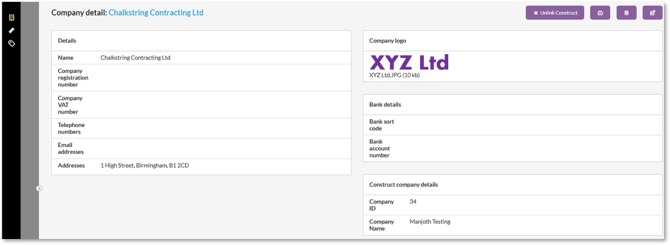
Note: A Construct company can only be linked to one Chalkstring group company within the same Chalkstring account.
Changing or removing a company link
To remove an existing link:
- Go to Settings>Admin.
- Select Company details.
- Select the relevant Chalkstring group company.
- Select Unlink Construct.
- Confirm that you want to remove the link.
Unlinking a company does not affect any tenders that have already been pushed to Construct.
To link the Chalkstring group company to a different Construct company, unlink the current company first, then select Link to Construct and choose the new company.
Troubleshooting
The Construct setup option is not visible
Check that:
- The Construct integration has been enabled for your Chalkstring account.
- Your role has Full access to the Construct setup permission.
If the integration has not been enabled, contact Chalkstring support at help@chalkstring.com.
The connection test has failed
Re-enter your Construct username and password, then select Test Connection again.
If the connection continues to fail after checking the details, contact Chalkstring support.
The Link to Construct button is greyed out
The button remains unavailable until the connection has been successfully connected and the status on the Construct setup page shows Connected.
No companies are available to select
Check that the Construct login has access to the required company.
If Chalkstring cannot retrieve the company list, or the list is empty, the company cannot be linked. If the expected company is available in Construct but does not appear in Chalkstring, contact Chalkstring support.
> Back to top