![Chalkstring Logo.png]](https://support.chalkstring.com/hs-fs/hubfs/Chalkstring%20Logo.png?height=40&name=Chalkstring%20Logo.png)
In this article
- Costing and pricing a rate build up
- Contingency
- Applying quotes
- Changing prices
- Fixing a product price
- Product pricing status options
- How to view a summary of costs
- Want to know more?
Costing and pricing a rate build up
Once you have defined the structure of your product(s), you will need to establish your costs, and ultimately your price. This can be done product by product or you can wait until you have completed the structure of all your products, entered quantities into the bill, and sought best pricing from suppliers and subcontractors using the 'Quote Request' functionality built into Chalkstring.
Contingency
Applying quotes
Once you have defined your scope of work requirements, quotes can be applied to assign prices to the materials, labour activities and supply & fit elements of your scope to give you your package price to deliver the project.
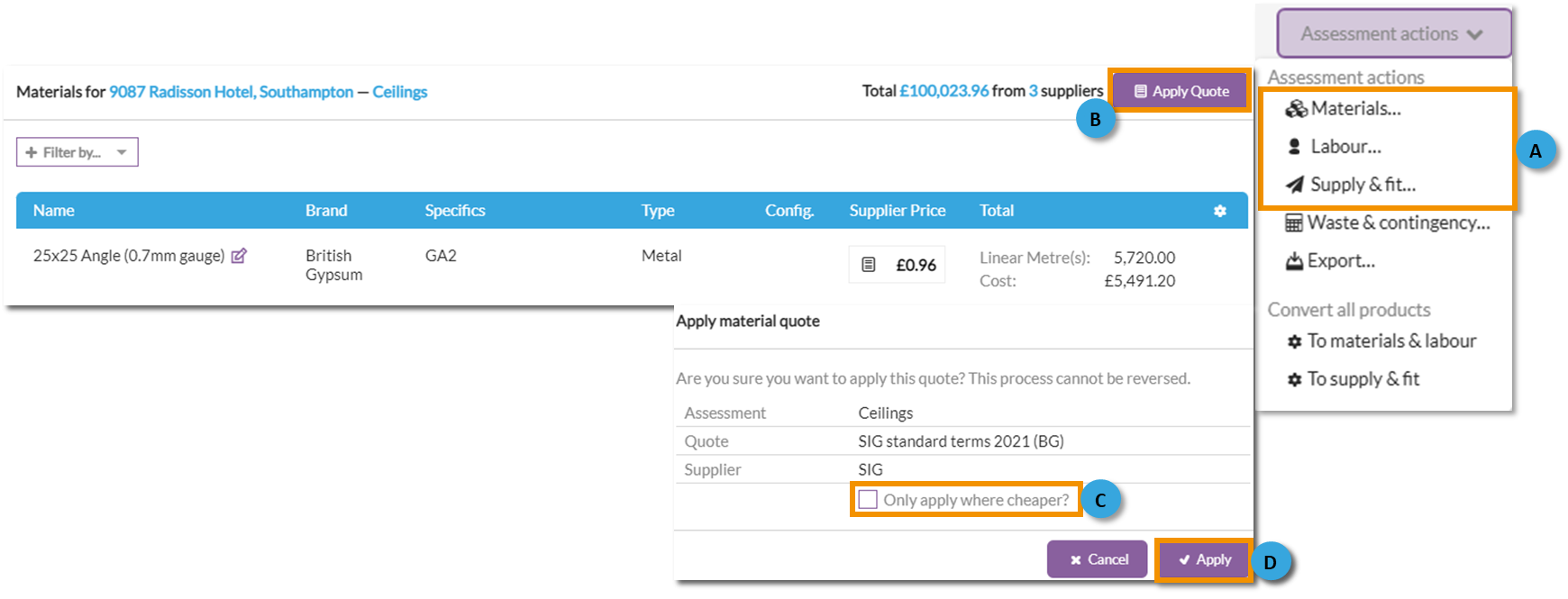
How to apply quotes
A. Hover your cursor over the 'Assessment actions' menu and click on the button for the type of quote you wish to apply, whether material, labour or supply & fit.
B. Click the 'Apply Quote' button in the top right corner.
1. Use the filters as required to search the available quotes.
2. Click the quote you want to apply to the assessment.
C. If you already have a quote applied, and only want the quote your currently applying to update the elements where it is offering cheaper prices, tick the 'Only apply where cheaper?' box.
D. Click ‘Apply’ and the quote will be applied to the rate build up.
Chalkstring will cross check a quote against every material/labour activity in all your products and apply prices automatically. You can apply a whole quote as it stands, or only the materials/activities from that quote that are cheaper than an existing selected quote, therefore cherry-picking best prices from a range of suppliers
Changing individual prices
How to change an individual price
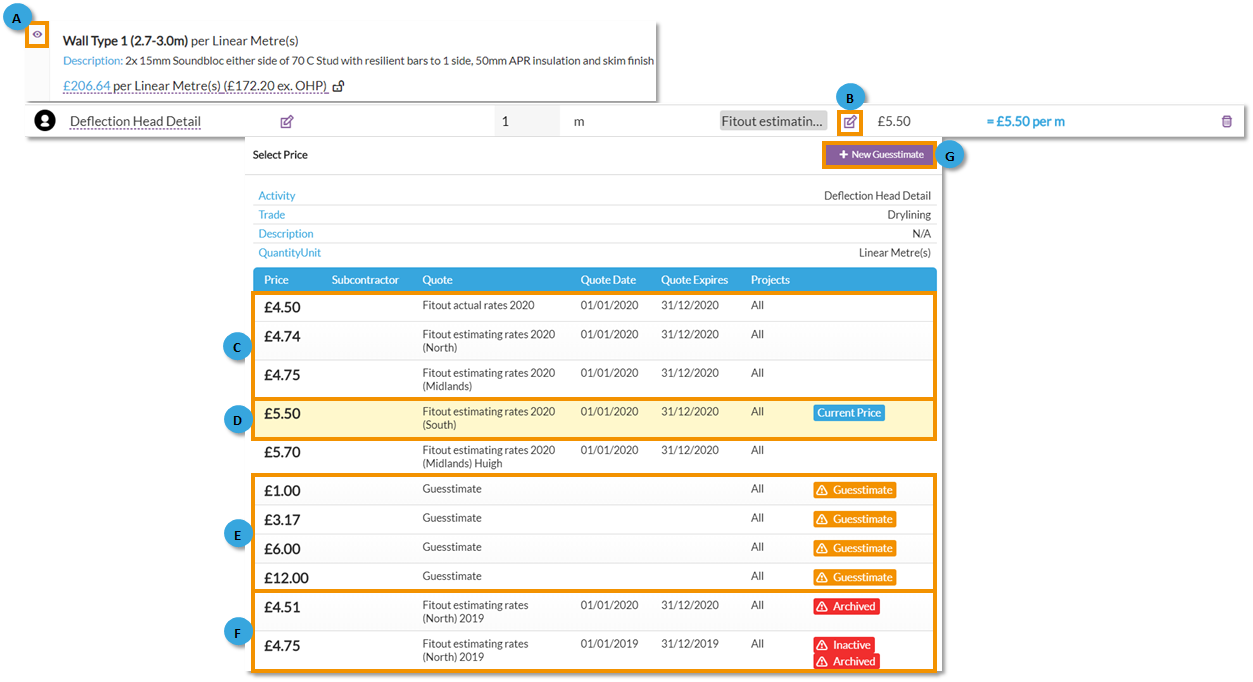
A. Click the 'eye' icon to open the product details.
B. Click the 'Edit' button next to the quote section to open a list of any existing rates in Chalkstring.
C. Any current valid rates will be listed with a white background.
D. If the item already has an assigned price, it will have a yellow background and a blue 'Current price' flag.
E. If Chalkstring contains any guesstimates created by you or your colleagues, they will be displayed with an orange flag.
F. Any historical prices, such as expired or archived quotes, will be displayed at the bottom of the list with a grey background and will show red flags.
G. If a rate you require does not currently exist, a new guesstimate can be added by clicking '+ Add Guesstimate' button in the top right corner and completing the fields.
Fixing a product price
If you have already agreed a price for a product with your client, you can manually set the price, and the OHP will be calculated out automatically for you.
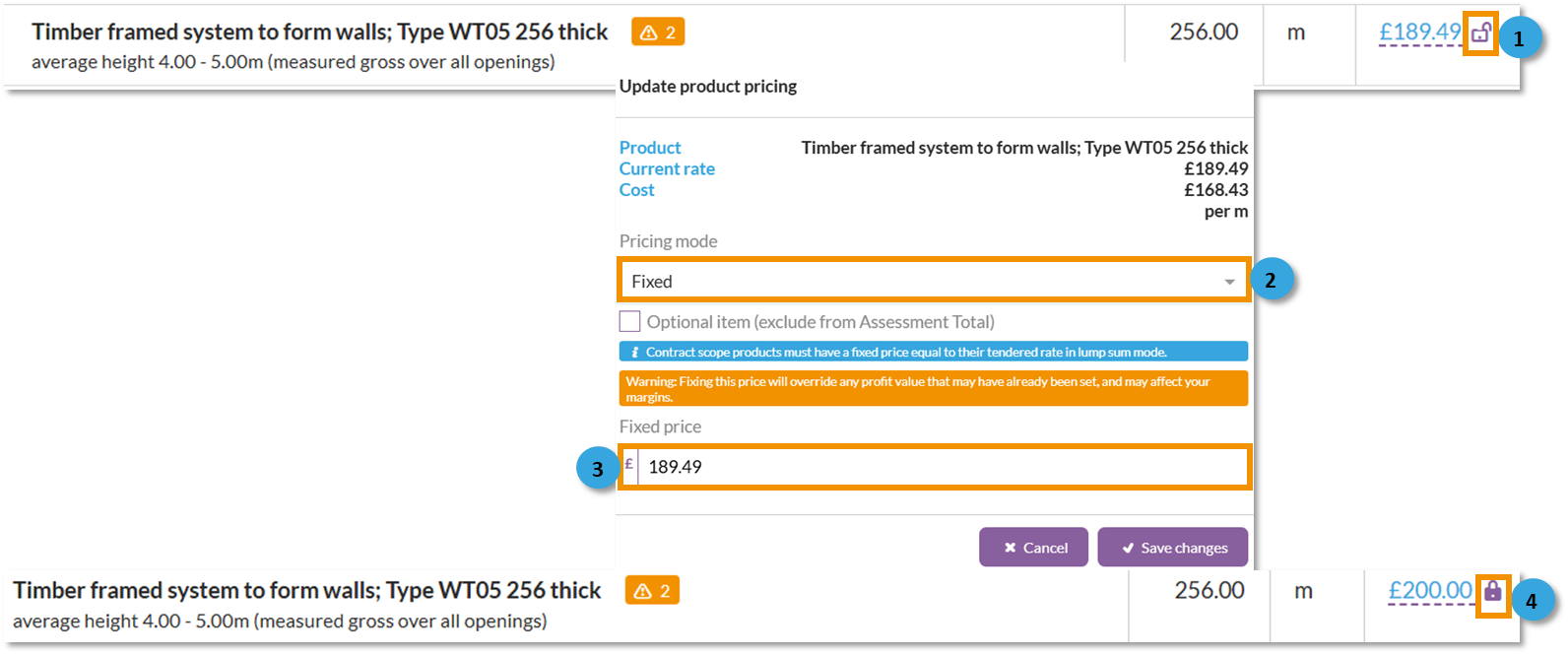
1. Click on the white ‘padlock’ symbol on the price line of the product you want to fix the price for.
2. Click the drop down and select 'Fixed'
3. Enter the rate you wish to fix the price at in the cell and click 'Save changes'
4. Once saved, the padlock will change to black to indicate that the price is fixed.
To unfix a price, repeat the steps above but select 'Unfixed' from the pricing mode drop down box.
A white open padlock means the price has not been manually fixed and is established by costs plus margins. A black closed padlock means the price has been manually fixed and the margin is established by the difference between that and the costs.
Product pricing status options
Products can also be assigned pricing statuses in the Rate Build Up. This allows different types of tender items to be handled correctly:
1. Click on the white ‘padlock’ symbol on the price line of the product you want to update the pricing status for.
2. For optional items, click the tickbox. For included or excluded, click the pricing mode drop down box and select the required status. Click 'Save changes'
3. The product status will update and a blue flag will be displayed on the product to show the current status set.
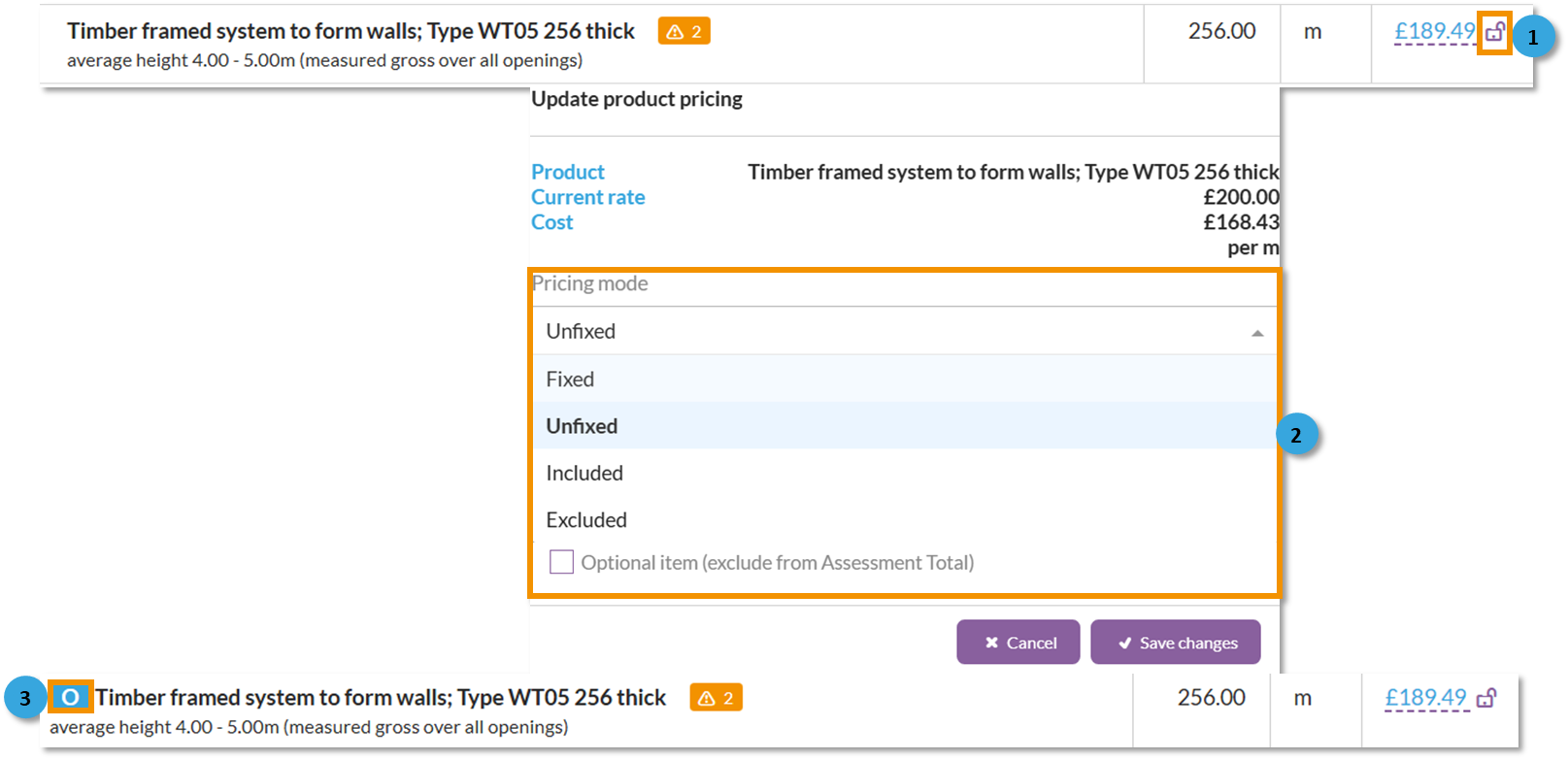
- Included ("Incl"): Work covered within another item's rate. The rate displays as "Incl" and the value is £0 to the client, but internal costs can still be tracked. Included products are copied to the onsite assessment. This is displayed as a blue 'I' icon on the rete build up
- Excluded ("Excl"): Work explicitly excluded from scope. Both rate and value display as £0/blank. No internal costs are expected. Excluded products are not copied to the onsite assessment. This is displayed as a blue 'E' icon on the rete build up
- Optional: Items offered as potential additions to the contract. These display with normal rate and cost values but are not included in the assessment total. Optional products appear in a separate "Options" section on tender documents, and are not copied to the onsite assessment. This is displayed as a blue 'O' icon on the rete build up
If our user’s client accepts the optional product, the user should regenerate the tender with those ‘optional’ flags deselected for them to be included in the onsite assessment.
> Back to top
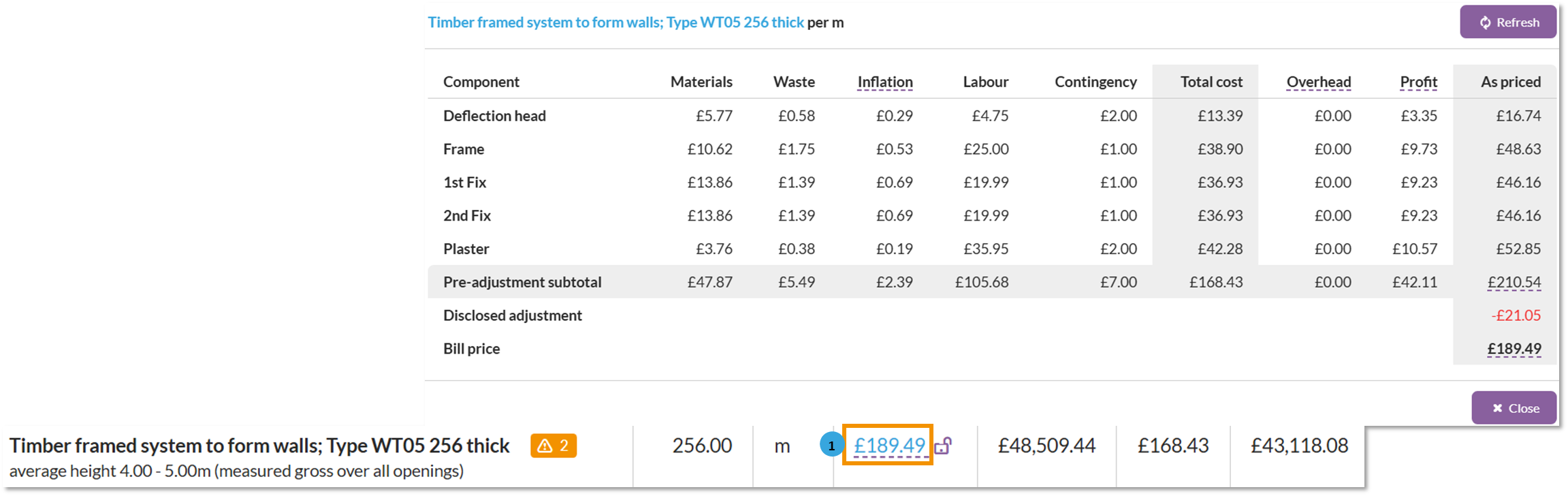
How to view a costs summary of a product
Once all products have been priced, you can view a summary of the pricing by clicking the rate total each product.