![Chalkstring Logo.png]](https://support.chalkstring.com/hs-fs/hubfs/Chalkstring%20Logo.png?height=40&name=Chalkstring%20Logo.png)
In this article
- What is product pricing status
- Setting a product pricing status
- Product pricing status options
- Want to know more?
What is product pricing status
Product pricing status allows you to control how individual products behave within your Rate Build Up and how they are presented to your client.
This gives you flexibility to handle different types of tender items correctly, such as work included within other rates, items outside your scope, or optional extras you want to offer separately. The selected status determines how the product is priced, whether it contributes to your assessment total, and how it appears on tender documents.
Setting a product pricing status
You can assign a pricing status to any product directly from the Rate Build Up.
How to set a product pricing status
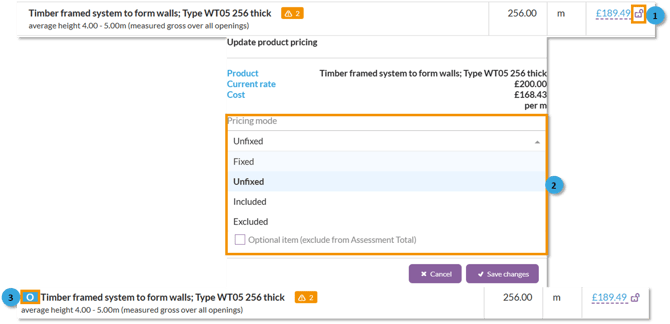
1. Click on the white ‘padlock’ symbol on the price line of the product you want to update the pricing status for.
2. For optional items, click the tickbox. For included or excluded, click the pricing mode drop down box and select the required status. Click 'Save changes'
3. The product status will update and a blue flag will be displayed on the product to show the current status set.
Product pricing status options
There are three pricing status options available, each designed to handle different tender scenarios.
Included ("Incl")
Used for work that is covered within another product’s rate.
- Displays as “Incl” on documentation with a £0 rate to the client
- Internal costs can still be tracked
- Included products are copied to the onsite assessment
- Displayed with a blue ‘I’ icon in the Rate Build Up
Excluded ("Excl")
Used for work that is explicitly outside your scope.
- Displays with £0 rate and value
- No internal costs are expected
- Excluded products are not copied to the onsite assessment
- Displayed with a blue ‘E’ icon in the Rate Build Up
Optional
Used for items you want to present to the client as potential additions.
- Displays with normal rate and cost values
- Not included in the assessment total
- Appears in a separate “Options” section on tender documents
- Not copied to the onsite assessment
- Displayed with a blue ‘O’ icon in the Rate Build Up
If our your client accepts the optional product(s), you will need to regenerate the tender with those ‘optional’ flags deselected so they are included in the accepted onsite assessment.
