![Chalkstring Logo.png]](https://support.chalkstring.com/hs-fs/hubfs/Chalkstring%20Logo.png?height=40&name=Chalkstring%20Logo.png)
In this article
- Before you start
- Pushing a tender to Construct
- Errors and warnings
- After a successful push
- Reviewing the tender in Construct
- Pushing a tender again
- If a push fails
- What information is sent to Construct
- Important considerations
- Want to know more?
Before you start
Before pushing a tender to Construct, check the following:
- Enabled feature: The Construct integration must be enabled for your Chalkstring account.
- Accepted tender: The tender must have a stage of Accepted before the Push to Construct button is available.
- User permissions: Your role must have access to the Tender page. There is no separate permission for pushing a tender to Construct.
- Construct connection: Chalkstring must be successfully connected to Construct.
- Linked group company: The Chalkstring group company used by the project must be linked to the appropriate Construct company.
- Budget structure: Check that the Construct budget settings are configured appropriately before pushing.
- Nominal codes: If Nominal code mandatory is enabled, all relevant cost lines must have their required nominal codes.
Pushing a tender to Construct
Once your tender has been accepted and the Construct integration has been set up:
- Click Projects.
- Open the relevant project and tender.
- Check that the tender's stage is Accepted.
- Select Push to Construct.
- Chalkstring will check the tender and your Construct setup before anything is sent.
- Review any errors or warnings displayed.
- If there are no blocking errors, continue with the push.
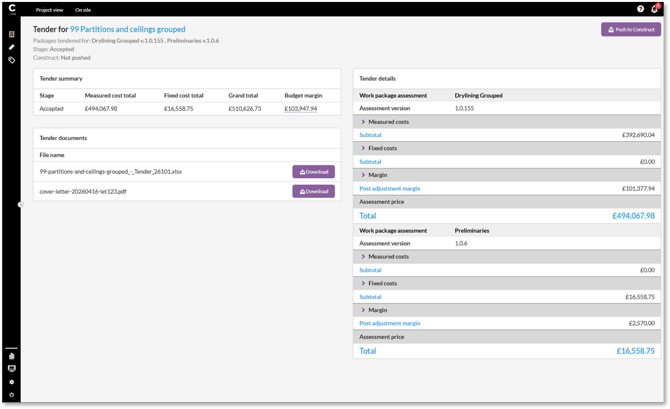
The Push to Construct button is only displayed when the Construct integration is enabled for the account and the tender's stage is Accepted.
Errors and warnings
When you select Push to Construct, Chalkstring checks for any issues before sending the tender.
There are two types of message you may see:
Errors
Errors prevent the tender from being pushed and must be corrected before you can continue.
An error may be displayed if:
- The project's group company has not been linked to a Construct company.
- The connection to Construct has not been set up.
- A required nominal code is missing when Nominal code mandatory is enabled.
- The Supply and Fit nominal code is blank when it is required.
Any blocking errors are listed so that you can correct them and try the push again.
Warnings
Warnings highlight information that you should review, but they do not prevent the tender from being pushed.
For example, if nominal codes are being used for grouping and Nominal code mandatory is not enabled, Chalkstring may warn you that some cost lines will be grouped under Unallocated.
Review the warnings and choose whether you want to continue with the push
After a successful push
When the push completes successfully:
- Chalkstring displays a confirmation message.
- A new project is created in Construct.
- The Construct status shown on the Tender page is updated with the date and time the tender was successfully pushed.
- The Push to Construct button changes to Repeat push to Construct.
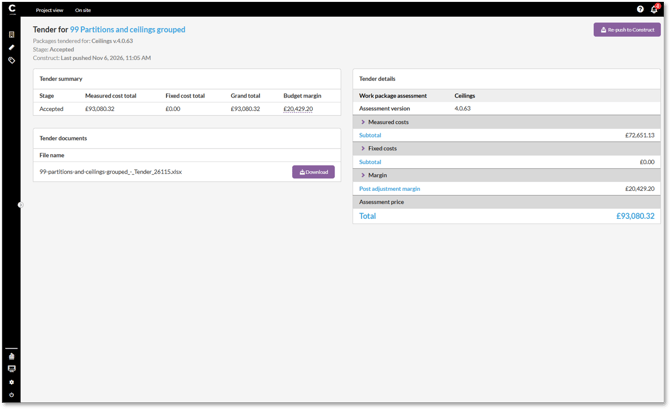
Before the first successful push, the status displays Construct: Not pushed. A failed push does not change this status.
Reviewing the tender in Construct
There is no separate preview screen in Chalkstring showing exactly what will be sent before the push.
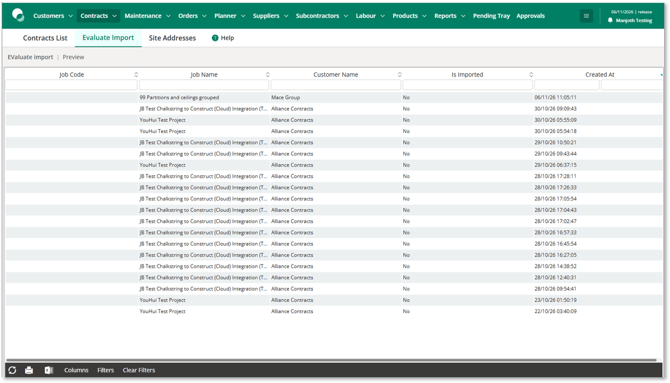
Once successfully pushed, the tender is available within Construct's Estimate Import section. Construct's own import review provides an additional opportunity to check the information before creating the Construct contract.
Contract information can then be previewed and updated in Construct before the Construct contract is created.
The budget information is created using the structure configured within the Construct setup options in Chalkstring
Pushing a tender again
After a tender has been successfully pushed, the button changes to Repeat push to Construct.
Selecting this option does not update the existing project in Construct. Each successful push creates a new, separate project.
If you select Repeat push to Construct, Chalkstring displays a warning showing the date and time of the previous push and explains that continuing will create another project.
You can then:
- Cancel to return to the tender without sending anything.
- Continue to create another separate project in Construct.
Important: If you make changes to the tender in Chalkstring after it has been pushed, these changes are not automatically reflected in Construct. To send the revised information, you would need to push the tender again, which will create a new project rather than updating the existing one.
If a push fails
If Chalkstring is unable to complete the push, a message is displayed asking you to try again.
A failed push:
- Does not create a successful push status against the tender.
- Does not change the date and time displayed against the Construct status.
- Can be tried again straight away.
If the push continues to fail, contact Chalkstring support at help@chalkstring.com.
Technical information about the failure is recorded in the audit log for the Chalkstring support team, so the technical error from Construct does not need to be displayed on screen.
What information is sent to Construct
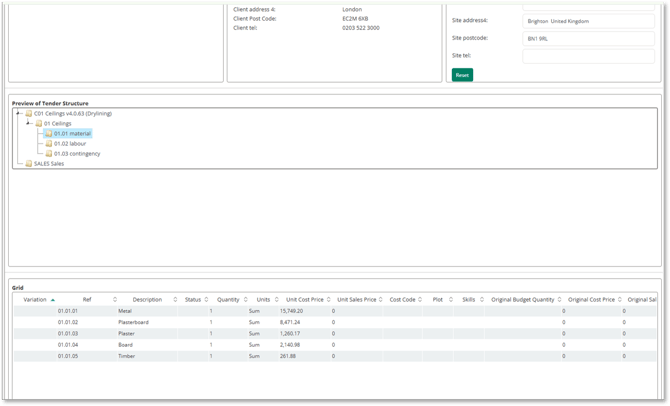
When a tender is pushed, Chalkstring sends the project and client information needed to create the project in Construct.
This includes:
- Job number: Taken from the Chalkstring project reference.
- Project name: Taken from the Chalkstring project name.
- Site: Taken from the project address.
- Client account reference: Taken from the client linked to the Chalkstring project.
- Client name
- Client address
- Client postcode
- Client telephone number
- Budget and revenue information: Structured according to the options selected within Construct setup.
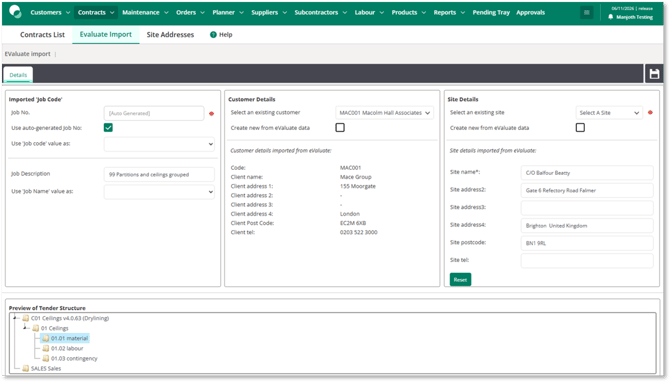
Items within the pushed structure are automatically given reference numbers using Construct's standard numbering, for example C01, 01, 02 and 01.01. This allows the pushed tender to follow the same numbering format as a contract created directly within Construct.
Important considerations
- Accepted tenders only: A tender must have a stage of Accepted before it can be pushed.
- Each push creates a new project: Chalkstring cannot use a repeat push to update an existing Construct project.
- One-off snapshot: Changes made in Chalkstring after a successful push are not automatically reflected in Construct.
- Check repeat pushes carefully: Continuing with a repeat push will create another separate project in Construct.
- Variations: Variations are not included in the current Construct integration.
- Nominal codes: Missing nominal codes may either prevent the push or result in costs being grouped under Unallocated, depending on your Construct setup.
- Contingency: Contingency amounts cannot currently be assigned nominal codes and are treated as Unallocated.
- Supply and Fit: Individual Supply and Fit lines cannot currently have separate nominal codes. They use the Supply and Fit nominal code configured within Construct setup.
- Connecting Chalkstring to Construct
- Choosing how the budget is structured in Construct
- How to set up nominal codes
- How to set role permissions
- Adding and editing group companies
- Adding and editing material types
- Adding and editing trades
- Adding and editing fixed cost types
- How to create a tender
- How to manage a tender decision
