![Chalkstring Logo.png]](https://support.chalkstring.com/hs-fs/hubfs/Chalkstring%20Logo.png?height=40&name=Chalkstring%20Logo.png)
In this article
- What are product groups
- Creating product groups
- Group menu
- Creating sub-groups
- Managing groups
- Adding products to groups
- Want to know more?
What are product groups?
Product groups allow you to organise products within the Rate Build Up into a structured, hierarchical layout. This makes it easier to manage and navigate your assessment, particularly on larger or more detailed projects.
Groups can be nested up to five levels deep, allowing you to mirror the section structure of a client’s Bill of Quantities or apply your own internal breakdown. Products can then be added into these groups to keep related items clearly organised.
This structure is carried throughout Chalkstring and is displayed across all relevant areas of the system, including:
-
Rate Build Up
-
Bill of Quantities
-
Application pages
-
Progress pages
-
Labour Progress
-
Takeoff
-
View Product page.
Where space is limited, a truncated breadcrumb is shown, with the full path available on hover.
Groups are also preserved when copying or duplicating assessments, allowing you to reuse structured templates across multiple projects.
Creating product groups
You can organise your products within the Rate Build Up using groups. Groups allow you to structure your assessment into separate groups as required. This can be useful when wanting to produce a rate build up which mirrors your client’s Bill of Quantities.
You can create multiple groups and organise them into a hierarchy of up to five levels.
- Expand the main Chalkstring black menu bar and click on the ‘Projects’ menu.
- Click the the project you are working on.
- Click the assessment name you want to work on.
- This takes you to the 'Assessment Overview' page, from here click the 'Rate Build Up' section along the top.
How to create a group
Groups can be created either before or after adding products to the Rate Build Up.
If you create your groups before adding products, you’ll be able to assign each product to the appropriate group as you add them.
If groups are created after products have already been added, you can still move products into groups, but this will need to be done individually for each product.
For this reason, it’s recommended to plan and set up your groups in advance—particularly if you’re building your Rate Build Up using products from the Product Template Database, rather than importing them from a client bill.
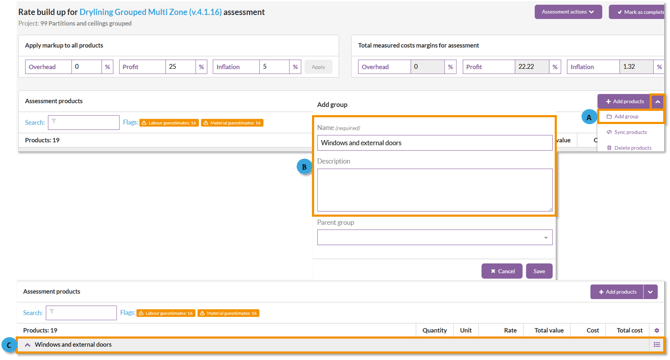
A. Click the arrow next to the 'Add products' button and select 'Add group'.
B. Enter a name for the group and if required, enter a description to provide additional context (Optional)
Click Save.
C. Once created, the group will appear in your Rate Build Up ready for products or sub-groups to be added.
Parent group – This dropdown allows you to select an existing group to act as the parent of the group you are creating.
If a parent group is selected, the new group will be created as a sub-group within it. If left blank, the new group will be created as a parent group.
Group menu
Once a group has been created, you can access the group menu for each group. This contains the below functions:
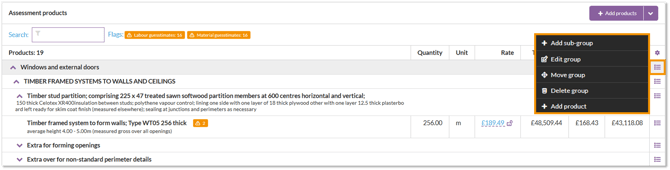
- Add sub-group - This allows you to create sub-groups within the current parent group. You can add up to 5 'nesting' levels for sub-groups. Groups require a name and have an option to add a description .
- Edit group - This allows you to edit the group name and description
- Move group - This allows you to move the current selected group into another group, or move the whole group to a different position in the rate build up.
- Delete group - This allows you to delete the current group. This will delete any subsequent groups and any products they contain.
- Add product - This allows you to add a new product into the group.
Note: The Add Product function adds new copies of products from your product template database to the selected group. It does not move existing products already in your Rate Build Up.
To move existing products into groups, please refer to the 'Managing groups' section below.
Creating Sub-groups
Sub-groups allow you to break down your group structure further within a parent group. This is useful where you need to reflect detailed sections or sub-sections from a Bill of Quantities.
You can create up to five levels of nested groups.
How to create a sub-group
Sub-groups can be created using the same steps shown in the 'Creating product groups' section above. When creating the group, simply use the ‘Parent group’ dropdown to select the group you want it to sit under.
They can also be created via the 'Group menu' for an existing group on the rate build up.
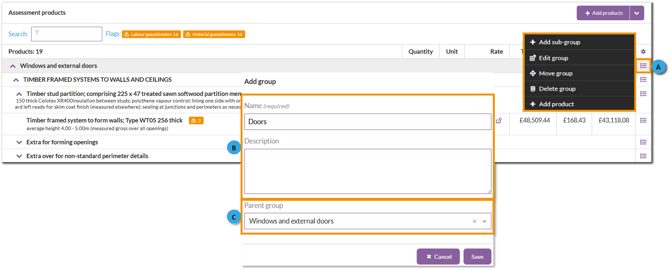
B. Enter a name for the group and if required, enter a description to provide additional context (Optional)
C. The parent group will automatically be selected for you.
Click save.
The sub-group will be created within the selected parent group and can be used to further organise your products.
You can also create Sub-groups within Sub-groups by following the same steps above but by clicking the group menu for an existing subgroup. You can create up to five levels of nested groups.Managing groups
Once groups have been created, you can manage them to keep your Rate Build Up organised and aligned with your project requirements.
Editing a group
You can update the name or description of any group at any time.
-
Click the group menu button for the group you want to edit and click 'Edit group'.
- Update the required fields.
-
Click Save.
Moving a group or product
Groups or products can be repositioned within the hierarchy or moved into other groups.
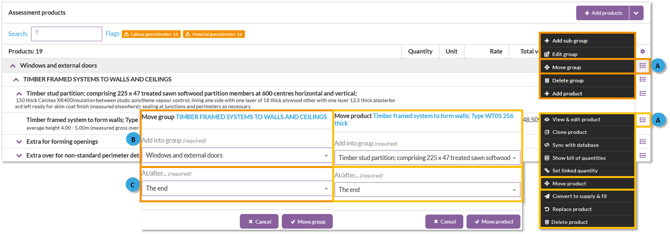
A. Click the group/product menu button for the group or product you want to move and click move group/product.
B. From the 'Add into group' group down, select which group you want to move your group/product to.
C. If you want to change the position of a group or product within the Rate Build Up, use the ‘Add After’ dropdown. Select the group or product you want it to appear after, or choose ‘End’ to move it to the bottom of the current group.
Deleting a group
Groups can be removed if no longer required.
-
Click the group menu button for the group you want to delete and click 'Delete group'.
- A pop up warning screen will be displayed
-
To continue with the deletion, click 'Delete group'
Warning: Deleting a group will also remove any sub-groups and products contained within it.
Adding products to groups
Products can be added to groups as they are added to the rate build up, or created directly within groups.
How to add products to a group from the main add product menu
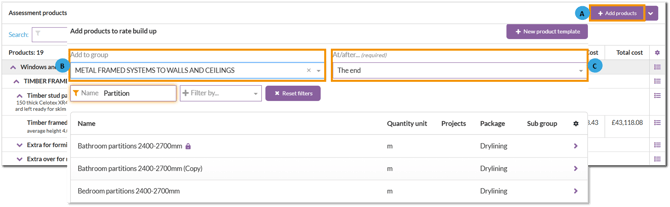
A. Click the ‘Add product’ button.
B. Select the group you want the products to be added to from the 'Add to group' dropdown.
C. If you’d like to control the position, use the ‘At/After’ dropdown to choose where the products should appear within the group.
Once selected, choose your products as normal and click ‘Add to RBU’. The products will then be added to the Rate Build Up within the selected group.
How to add products to a group from the group menu
-
Click to open the group menu for the relevant group you want to add a product to and click 'Add product.
-
The group will be already set for you.
-
If you’d like to control the position, use the ‘At/After’ dropdown to choose where the products should appear within the group.
Once selected, choose your products as normal and click ‘Add to RBU’. The products will be added to the Rate Build Up within the selected group.
Note: The Add Product function from the 'Group menu' adds new copies of products from your Product template database within the selected group. It does not move existing products already in your Rate Build Up.
To move existing products into groups, please refer to the 'Managing groups' section above.
