![Chalkstring Logo.png]](https://support.chalkstring.com/hs-fs/hubfs/Chalkstring%20Logo.png?height=40&name=Chalkstring%20Logo.png)
In this article
Before you connect
Before setting up the connection, make sure:
- The Xero integration has been enabled for your account. Contact help@chalkstring.com if you don’t see the option to connect.
- You have the correct permissions:
- To be able to access the xero integration options, you must have the 'Exports' access permissions for the 'Accounts' section enabled for your login. Speak to your system administrator if you require this access permission.
- You are logged into the correct Xero organisation. If you have access to multiple Xero accounts, make sure you’re logged into the right one before starting — Chalkstring will connect to whichever one you’re currently authenticated with.
Connecting Chalkstring to Xero
To connect your account:
- In Chalkstring, go to Admin > Accounting setup.
- Scroll to the Xero Accounting platform connection
- Click Connect to Xero.
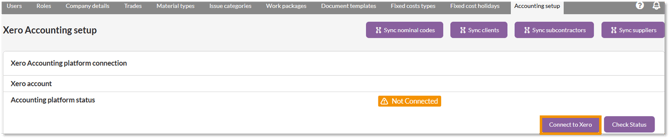
4. You’ll be redirected to the Xero login page (if not already logged in).
5. Once logged in, Xero will ask you to authorise the Chalkstring integration.
6. Click Allow access.
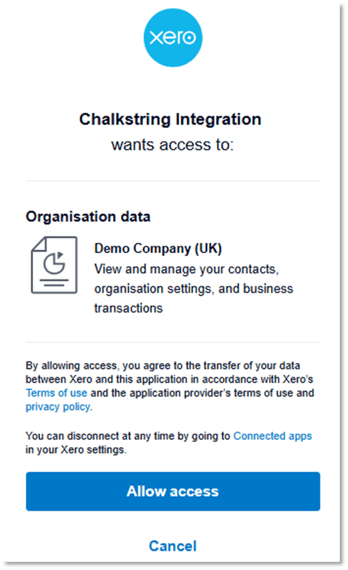
7. You’ll be redirected back to Chalkstring, where the connection status should now display as Connected. The name of the connected Xero organisation will also be shown.

Once connected, Chalkstring will be able to read and write selected data to Xero based on your permissions and sync actions.
Disconnecting from Xero
You can remove the integration at any time.
To disconnect:
- In Chalkstring, go to Admin > Accounting setup.
- Scroll to the Xero Accounting platform connection section.
- Click Disconnect.
- Confirm the action in the pop-up.
This will:
- Remove the connection in Chalkstring.
- Remove Chalkstring from your list of connected apps in Xero.
You can reconnect at any time by following the connection steps above.
Important considerations
- One-way integration: Chalkstring can only push accounting data to Xero. Xero cannot send data accounting back to Chalkstring.
- If incorrect data is pushed, you’ll need to either:
- Manually fix the record in both Chalkstring and Xero to keep them aligned, or
- Void the transaction in Xero, correct it in Chalkstring, and push again.
- Re-pushing data will not correct existing transactions in Xero — it will create a new entry.
Want to know more?
