![Chalkstring Logo.png]](https://support.chalkstring.com/hs-fs/hubfs/Chalkstring%20Logo.png?height=40&name=Chalkstring%20Logo.png)
In this article
- Understanding how Xero handles VAT rates
- Linking tax codes in Chalkstring
- Setting VAT rates on projects
- Want to know more?
Understanding Chalkstring and Xero tax codes
Xero separates tax rates for sales and purchases. For example, Xero will have a “20% VAT on Income” (sales tax) and a “20% VAT on Expenses” (purchase tax) as two distinct tax rates. This is different from some other accounting systems (like Sage 50) where a single code (e.g. “T1”) might be used for both sales and purchases.
Example of Xero tax rates in Xero
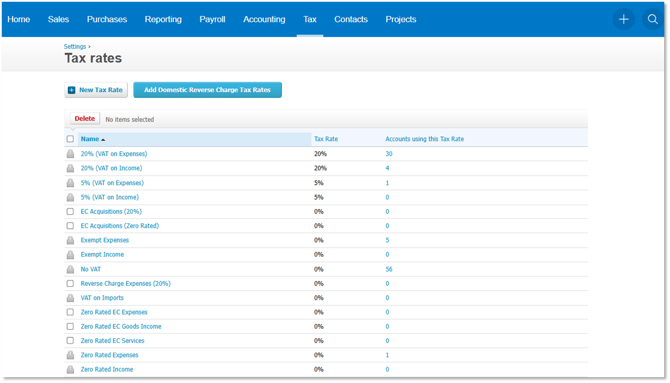
Because of Xero’s approach, when integrating Chalkstring with Xero you will typically need to have separate VAT codes in Chalkstring for income vs. expense transactions, each linked to the appropriate type of Xero tax rate.
Recommended setup
We recommend linking your existing default VAT codes (Standard Rate, Reduced Rate, Zero Rate etc.) to the corresponding Xero expense tax rates. You could rename them to make it clear they are expense VAT codes.
Then create additional VAT codes for revenue transactions and link these to the Xero income tax rates. Using a clear naming convention such as "Standard Rate - Income (Xero)" helps distinguish between them.
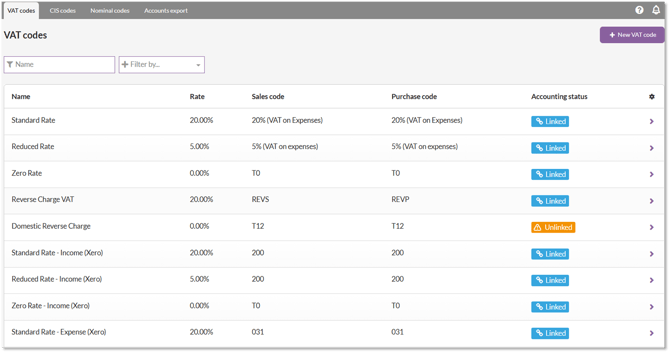
This approach minimises changes to your existing data, since most transactions in Chalkstring relate to costs and will continue to use your existing VAT codes.
Linking a tax code from its record
You can link each Chalkstring tax code directly from its detail page.
- Go to Accounts > Tax codes.
- Click on the tax code you wish to link.
-
In the Accounting platform section, click Link with existing to connect it to a Xero tax rate.
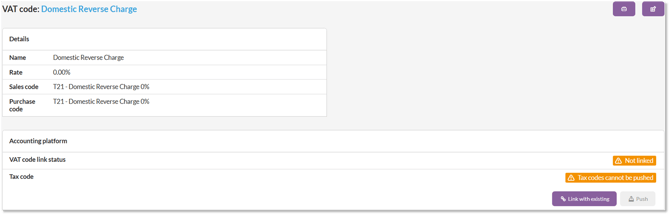
The Sales code and Purchase code fields on the VAT code record are not used for Xero integration - the link to the Xero tax rate is what determines which tax rate is applied when transactions are pushed.
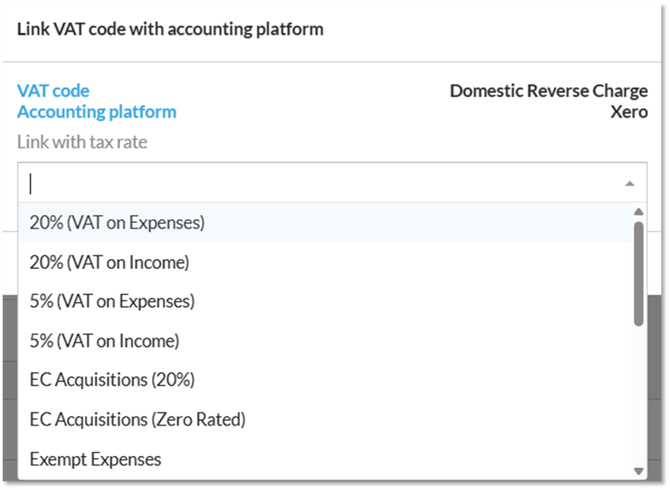
Once linked, this tax code will be used when pushing invoices or applications that include it.
Setting VAT rates on projects
When setting up a project, you can specify which VAT code to use for different transaction types: application revenues, supply & fit costs, material costs, and fixed costs. Make sure you select the correct VAT code (income or expense) for each category.
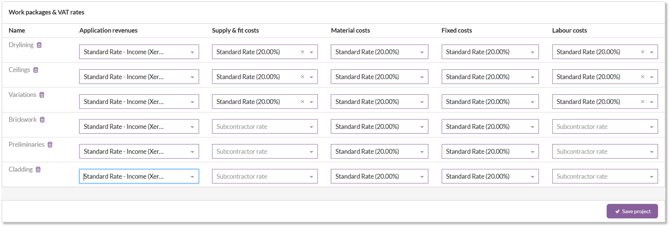
Labour costs can be set to use the VAT rate set on the subcontractor record rather than the project settings.
Option to link VAT code is greyed out
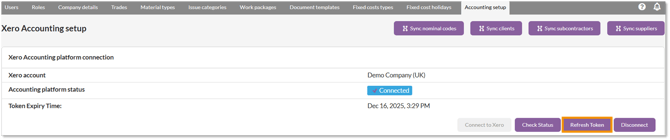
If the option to link a VAT code is greyed out and when you hover over the buttons it says ‘Xero is not connected’, you will need to manually refresh the connection/token.
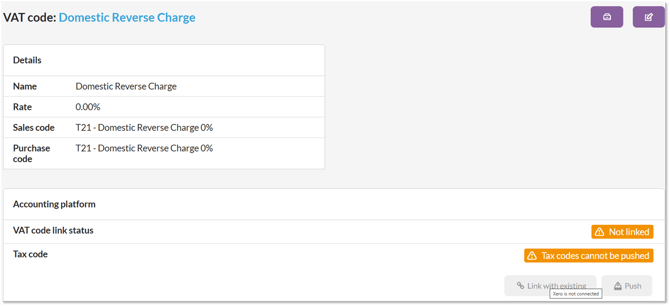
This can be done by going to the Accounting setup page and clicking the ‘Refresh Token’ button. Tokens stay active for 30 mins.