![Chalkstring Logo.png]](https://support.chalkstring.com/hs-fs/hubfs/Chalkstring%20Logo.png?height=40&name=Chalkstring%20Logo.png)
In this article
- Linking nominal codes via Accounting setup (bulk import/link)
- Linking a nominal code from its record
- Assigning nominal codes to trades and cost types
- Linking nominal codes when pushing an invoice
- Want to know more?
Linking nominal codes via Accounting setup
Chalkstring nominal codes represent your financial accounts (revenue and expense categories). You can link these codes to the corresponding accounts in Xero’s Chart of Accounts. This can be done on the Sync Nominal Codes page in Chalkstring. Nominal codes can be imported from Xero or linked to existing Xero accounts, but cannot be pushed from Chalkstring to Xero (i.e., Chalkstring won’t create new accounts in Xero).
Note: Only Xero accounts of type Revenue or Expense are available for linking in Chalkstring. Other account types in Xero (such as Bank, Asset, Liability, etc.) are not shown on the sync screen.
To bulk link nominal codes:
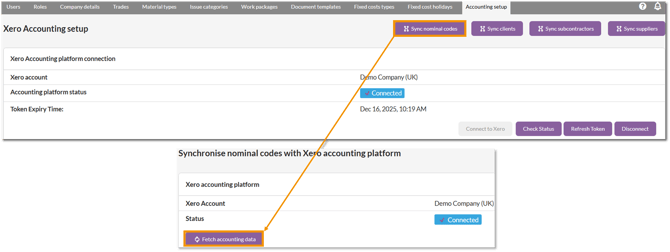
1. In Chalkstring, go to Admin > Accounting setup and click Sync nominal codes.
2. Click Fetch accounting data to load the current list of Chalkstring nominal codes and Xero accounts.
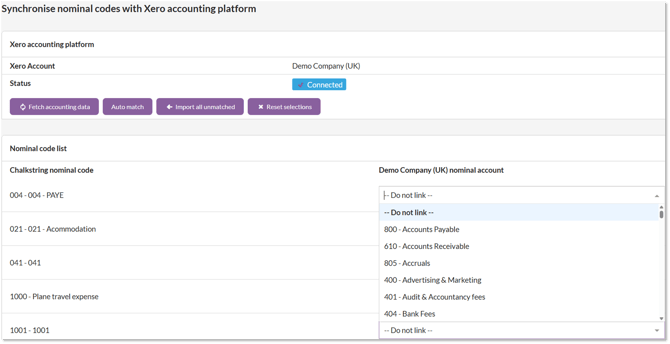
- The page will list Chalkstring nominal codes that are not yet linked (top section), and Xero accounts that are not linked to any Chalkstring code (bottom section).
- For each Chalkstring nominal code (top list), you can select a corresponding Xero account from the dropdown to link them. (If you do not want to link a particular code yet, leave it as “unlinked”.)
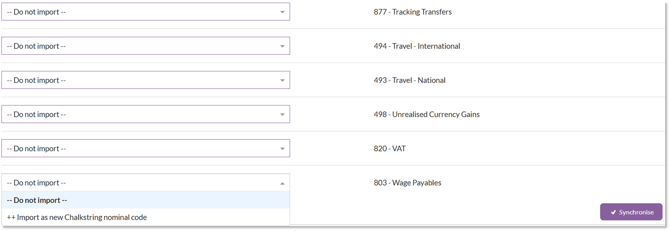
- For each Xero account in the bottom list, you have the option to Import it as a new Chalkstring nominal code (if it doesn’t exist in Chalkstring already) or leave it unimported.
- Optionally use Auto match – this will automatically link any nominal codes and Xero accounts that have exactly matching names.
- You can also use Import all unmatched to mark all remaining Xero accounts for import as new Chalkstring codes.
3. Once your selections are made, click Synchronise. A confirmation dialog will show what links will be made and which new codes will be imported. Confirm to execute the sync.
After syncing, all linked nominal codes in Chalkstring will now have an associated Xero account. Any new nominal codes imported from Xero will appear in Chalkstring’s nominal codes list.
You can return to this page at any time to see and resolve any unlinked items.
Linking from an individual nominal code record
You can also link a nominal code on a one-by-one basis:
1. In Chalkstring, go to Accounts > Nominal codes and select the specific nominal code you want to link. This opens the nominal code’s detail page.
2. In the Accounting platform section, click Link with existing. You will get a dropdown list of Xero accounts to choose from.
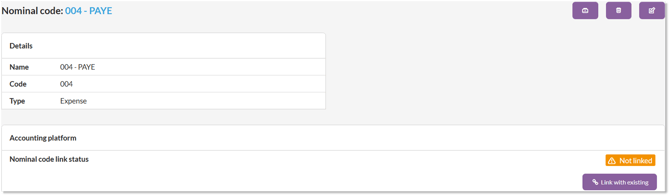
Only Xero accounts of type Revenue or Expense will be listed. Choose the appropriate Xero account that corresponds to this Chalkstring nominal code.
If the nominal code is already linked to a Xero account, the Accounting platform section will display the linked account name. If needed, you can unlink or change the link from this screen as well.
Assigning nominal codes to trades and cost types
Linking nominal codes to Xero is one step; you must also ensure those nominal codes are assigned to the correct categories in Chalkstring (trades, work packages, materials, etc.) so that transactions use the right codes.
To assign nominal codes in Chalkstring:
1. Go to Accounts > Nominal codes and click Assign nominal codes.
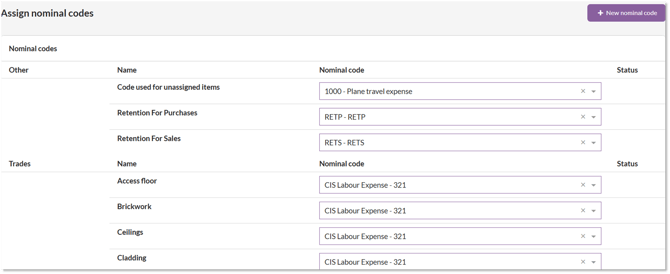
The categories to assign include:
- Other – codes for retention (purchases and sales) and any unassigned items.
- Trades – codes for labour activity costs. For CIS labour, these would typically be assigned to a “CIS Labour Expense” account.
- Work packages – codes for revenue categorisation (project income).
- Material types – codes for material costs (typically assigned to Cost of Goods Sold accounts if using Xero’s standard chart).
- Fixed cost types – codes for fixed cost items (e.g. plant hire or other fixed costs).
When you push an invoice or application to Xero, Chalkstring uses these assignments to determine which Xero account each line item should be posted to. Each transaction line in Chalkstring inherits a nominal code based on its trade, material type, etc., and thus Chalkstring knows which Xero account to use for that line.
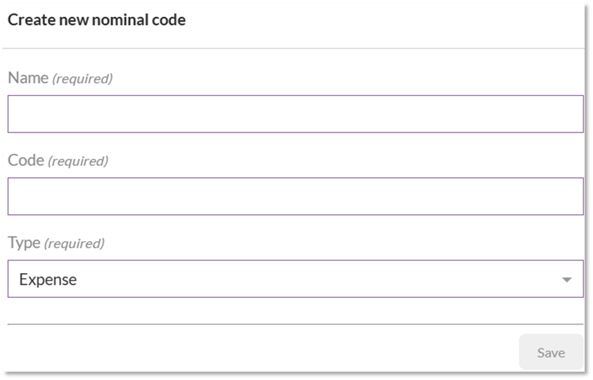
If you need a new nominal code in Chalkstring:
- Click New nominal code (in Accounts > Nominal codes)
- Enter the name and code, and specify whether it’s an Expense or Revenue type
- You can then link this new code to the appropriate Xero account (via the methods above)
Linking nominal codes when pushing an invoice
If you attempt to push an invoice from Chalkstring to Xero and some line items are using unlinked nominal codes, Chalkstring will alert you.
On the invoice page, in the Accounting platform panel at the bottom, you’ll see a warning indicating which nominal codes need to be linked before the push can proceed.
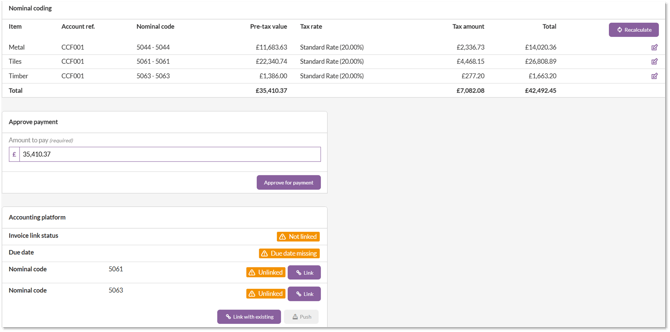
You can link these codes from the invoice page.
- Next to each unlinked nominal code listed in the warning, there will be a Link button
- Click this to pick the corresponding Xero account right from the invoice screen, without leaving the page.
After linking the codes, you can push the invoice and Chalkstring will post each line to the Xero account you just linked.
Example: If you have a material invoice with a line item coded to a Chalkstring nominal code “Plant Hire” that wasn’t linked, the Accounting platform section will flag it. Using the Link button, you connect “Plant Hire” to nominal code 500 – Equipment Expenses for example. Now when you push the invoice, that line will correctly go to account/code 500 in Xero.
Xero Chart of Accounts

Important considerations
- This integration is one-way only — Chalkstring pushes data to Xero.
- If you push a transaction with incorrect nominal codes, you must:
- Manually correct the entry in Xero and update Chalkstring to match, or
- Void the Xero entry, fix in Chalkstring, and push again
- Re-pushing does not overwrite existing records — it creates a new transaction in Xero
- Xero integration overview
- Connecting Chalkstring to Xero
- Syncing Contacts with Xero
- Linking Tax Codes with Xero
- Configuring CIS for Xero Integration
- Pushing and Linking Material Invoices and Credit Notes
- Pushing Fixed Cost Invoices and Credit Notes
- Pushing Labour Applications for Payment
- How to setup nominal codes
