![Chalkstring Logo.png]](https://support.chalkstring.com/hs-fs/hubfs/Chalkstring%20Logo.png?height=40&name=Chalkstring%20Logo.png)
In this article
- Requirements before pushing
- Pushing a fixed cost invoice to Xero
- Linking to an existing Xero bill
- Unlinking an invoice
- Viewing push status
- Credit notes
- Want to know more?
Requirements before pushing
To push a fixed cost invoice or credit note to Xero:
- The supplier contact must be linked to a Xero supplier
- All nominal codes used in the invoice lines must be linked to Xero accounts
- Tax codes must be assigned and linked to Xero
- The invoice must be in Approved status in Chalkstring.
⚠️ Chalkstring can only push data to Xero — Xero does not send any data back. If you need to make a correction, either void the record in Xero and repush from Chalkstring, or manually adjust both systems.
Pushing a fixed cost invoice to Xero
- In Chalkstring, you can push invoices from a projects Fixed costs>Invoices page or from the Accounts > Invoices page.
- Click into the invoice you want to push.
- The Accounting platform section can be viewed at the bottom of the invoice page.
- If any required links for the invoice are missing (supplier, nominal code, tax code), you’ll see a warning. Click Link next to each one to complete the setup.
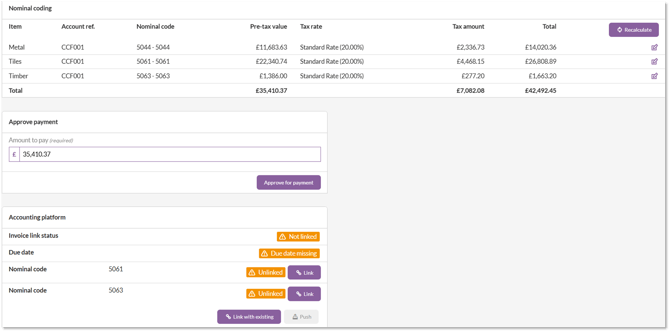
5. Once the invoice is ready, click Push.
6. A confirmation screen will appear with the option to mark the invoice as paid in Chalkstring as the data is pushed to Xero..
7. Click Push and Chalkstring will push the invoice to Xero.
After clicking push:
- A confirmation message will appear in the bottom right corner.
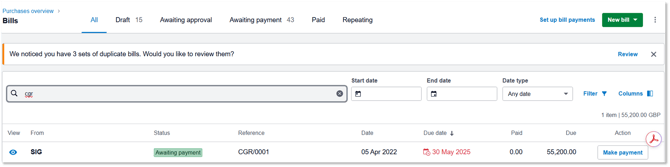
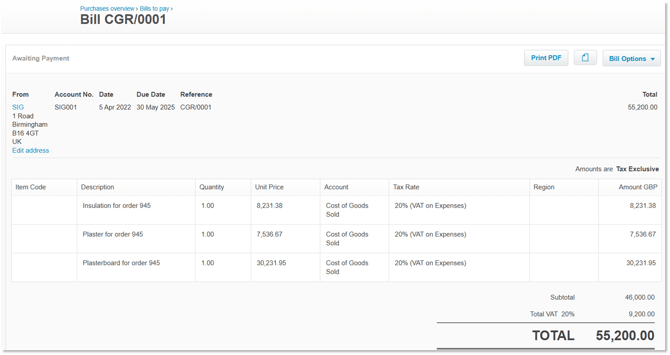
- The invoice will appear in Xero as a bill under the linked supplier with the status "Awaiting Payment".
What gets pushed
The bill in Xero includes:
- Supplier/Subcontractor (from the linked Xero contact)
- Invoice date and due date
- Invoice reference number (shown as the bill reference in Xero)
- Line items grouped by nominal code, each showing the fixed cost type and Chalkstring order number (e.g. "Scissor lift for order 1343")
- The Xero account for each line item (based on the nominal code assigned to that fixed cost type)
- VAT tax rate for each line item
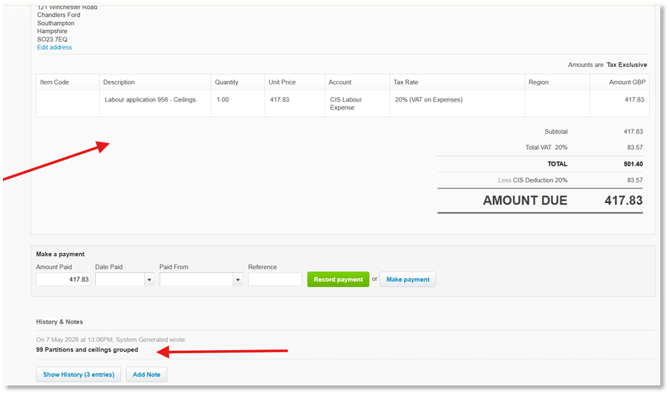
The bill is marked as received through the Xero API from Chalkstring Integration in the History & Notes section.
After pushing
Once pushed, the Accounting platform section shows:
- Invoice link status: Pushed
- Pushed on: date and time the invoice was sent to Xero
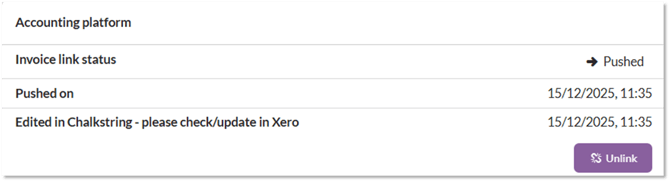
NOTE - If you edit the invoice in Chalkstring after pushing, a warning appears: "Edited in Chalkstring - please check/update in Xero". Changes made in Chalkstring are not automatically synced to Xero. You will need to either manually correct the entry in Xero and update Chalkstring to match, or void the Xero entry, fix in Chalkstring, and push again.
When the invoice is pushed, the project name is automatically added as a note in the History & Notes section of the Xero bill.
Linking to an existing Xero bill
If a bill has already been created manually in Xero for this invoice, you can click Link with existing instead of Push.
This connects the Chalkstring invoice to the existing Xero bill without creating a duplicate.
Select the Xero bill from the dropdown to complete the link.

Selecting ‘Link with existing’ will show relevant items from Xero’s bills for you to match the invoice to
Unlinking an invoice
If you need to break the connection between a Chalkstring invoice and its Xero bill, click Unlink.
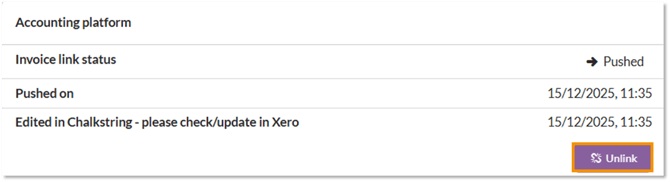
This removes the link in Chalkstring but does not delete the bill from Xero.
You might use this if you need to delete and recreate the bill in Xero, or if the wrong records were linked.
Viewing push status
The push status for all invoices can be view via the Accounts > Invoices menu The 'Accounting status' column displays the status for each invoice.
Invoices show as:
Pushed - Invoice has been sent over to Zero.
Unlinked - Invoice has not yet been pushed or has been unlinked from the invoice in Xero.
Linked - Invoice has been linked to an existing invoice in Xero.

Credit notes
Credit notes are entered in Chalkstring as negative invoices. When pushed to Xero, they create a credit note rather than a bill.
Credit notes are pushed independently and are not linked to any previous invoice or bill in Xero. If you need to allocate the credit note against an existing bill, you'll need to do this manually in Xero after pushing.
> Back to top
Important considerations
- This integration is one-way only — Chalkstring pushes data to Xero.
- If you push a transaction with incorrect nominal codes, you must:
- Manually correct the entry in Xero and update Chalkstring to match, or
- Void the Xero entry, fix in Chalkstring, and push again
- Re-pushing does not overwrite existing records — it creates a new transaction in Xero
