![Chalkstring Logo.png]](https://support.chalkstring.com/hs-fs/hubfs/Chalkstring%20Logo.png?height=40&name=Chalkstring%20Logo.png)
In this article
- Syncing Clients with Xero
- Syncing Subcontractors with Xero
- Syncing Suppliers with Xero
- Want to know more?
Syncing Clients with Xero
You can sync client contacts between Chalkstring and Xero either in bulk or individually from within a client’s record.
Bulk sync clients from Accounting setup:
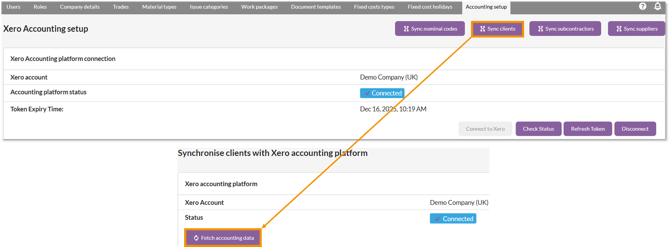
- In Chalkstring, go to Admin > Accounting setup and click Sync clients.
- On the Sync Clients page, click Fetch accounting data. This will retrieve the latest client contact data from both Chalkstring and Xero and display a comparison.
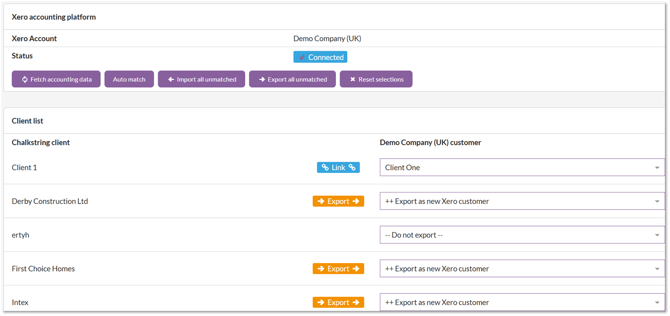
- The page is divided into two lists:
- Chalkstring clients that are not yet linked to any Xero contact (shown at the top).
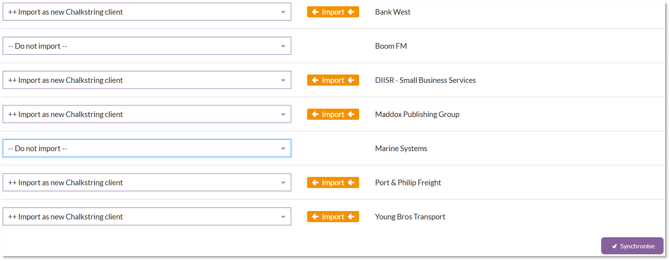
- Xero customers that are not yet linked to any Chalkstring client (shown at the bottom).
- For each Chalkstring client in the top list, choose an action from the dropdown:
- Export as new Xero customer – create this client in Xero as a new customer contact.
- Link to existing Xero customer – if a matching customer exists in Xero, link to it.
- Leave unlinked – take no action for this client now.
- For each Xero customer in the bottom list, you can choose:
- Import as new Chalkstring client – create a new client in Chalkstring using the Xero contact’s details.
- Leave unlinked – take no action for this Xero contact.
- Use the Auto match feature to automatically link records where the client name exactly matches in both systems.
- You can also use quick actions:
- Export all unmatched – mark all Chalkstring clients to be exported to Xero.
- Import all unmatched – mark all Xero customers to be imported into Chalkstring.
3. Once you’re satisfied with the linkage selections, click Synchronise. A confirmation dialog will display the list of actions (imports/exports) that will be performed. Confirm to proceed.
You can return to the Sync Clients page at any time to manage new or updated clients.
The data sent as part of the sync includes: name, account reference, email address, telephone number, and address. Other offices and other contacts on the client record are not included in the sync.
Syncing from an individual client record:
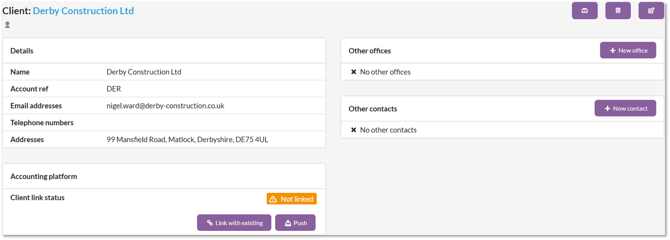
- Go to Contacts > Clients, and open a client record.
- The Accounting platform section displays the current sync status.
- Choose:
- Push – to create the client as a new contact in Xero.
- Link with existing – to connect to an existing Xero contact.
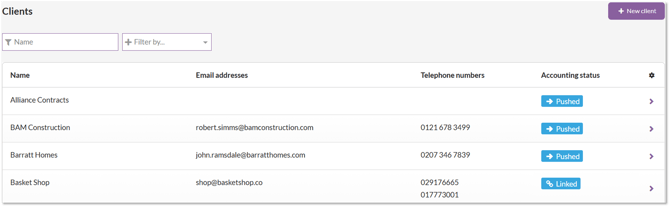
You can also view sync status at a glance in the Clients list. The Accounting status column shows whether a client is linked.
Broken links
If a client is linked to a Xero contact that has since been deleted or can’t be found, Chalkstring will display a Broken link warning. To fix: - Relink using the dropdown to select another contact - Or Push again to recreate the contact in Xero
Syncing Subcontractors with Xero
You can sync subcontractor contacts either in bulk or individually.
Note: CIS-related details (e.g. UTR number, subcontractor type, verification number) are not synced and must be entered manually in Xero. Refer to the 'Configuring CIS for Xero Integration' article for help.
Bulk sync subcontractors from Accounting setup:
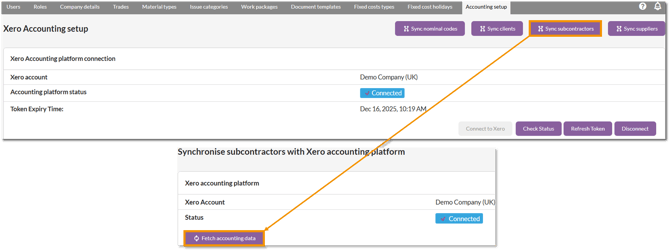
- Go to Admin > Accounting setup and click Sync subcontractors.
- Click Fetch accounting data. This will retrieve the latest subcontractor contact data from both Chalkstring and Xero and display a comparison.
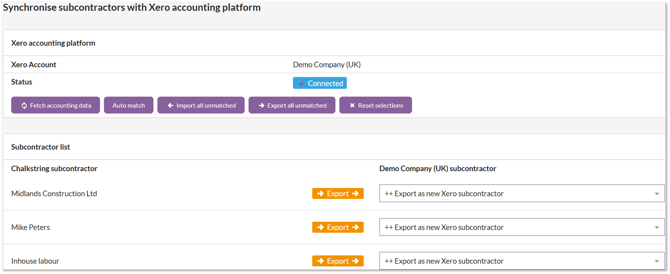
- The page is divided into two lists:
- Chalkstring clients that are not yet linked to any Xero contact (shown at the top).
- Xero customers that are not yet linked to any Chalkstring client (shown at the bottom).
- For each Chalkstring client in the top list, choose an action from the dropdown:
- Export as new Xero customer – create this client in Xero as a new subcontractor contact.
- Link to existing Xero customer – if a matching subcontractor exists in Xero, link to it.
- Leave unlinked – take no action for this client now.
- For each Xero subcontractor in the bottom list, you can choose:
- Import as new Chalkstring subcontractor – create a new subcontractor in Chalkstring using the Xero contact’s details.
- Leave unlinked – take no action for this Xero contact.
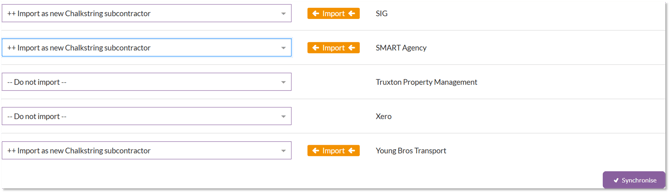
- Use the Auto match feature to automatically link records where the subcontractor name exactly matches in both systems.
- You can also use quick actions:
- Export all unmatched – mark all Chalkstring subcontractor to be exported to Xero.
- Import all unmatched – mark all Xero subcontractor to be imported into Chalkstring.
3. Once you’re satisfied with the linkage selections, click Synchronise. A confirmation dialog will display the list of actions (imports/exports) that will be performed. Confirm to proceed.
You can return to the Sync subcontractor page at any time to manage new or updated clients.
The data sent as part of the sync includes: name, account reference, email address, telephone number, address, company registration number, and VAT registration number.
Other offices and other contacts on the subcontractor record are not included in the sync.
Syncing from an individual subcontractor record:
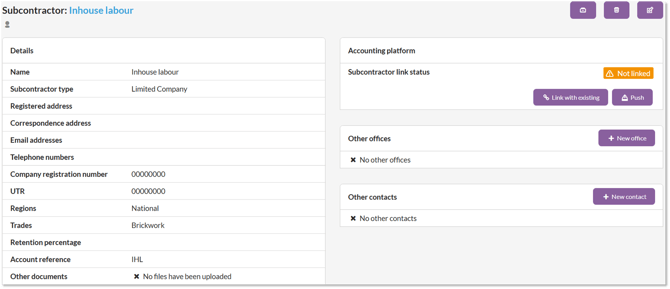
- Go to Contacts > Subcontractors, and open a client record.
- The Accounting platform section displays the current sync status.
- Choose:
- Push – to create the client as a new contact in Xero.
- Link with existing – to connect to an existing Xero contact.
You can also view sync status at a glance in the Clients list. The Accounting status column shows whether a client is linked.
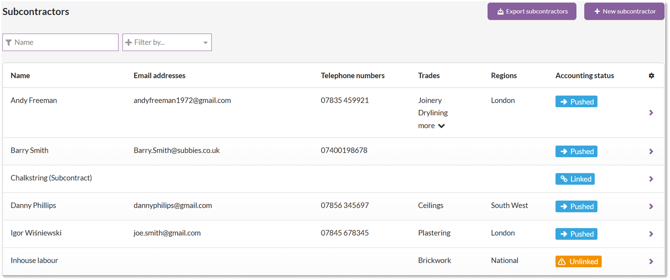
Broken links
If a subcontractor is linked to a Xero contact that has since been deleted or can’t be found, Chalkstring will display a Broken link warning. To fix: - Relink using the dropdown to select another contact - Or Push again to recreate the contact in Xero .
Syncing Suppliers with Xero
You can sync supplier contacts between Chalkstring and Xero either in bulk or individually from within a supplier's record.
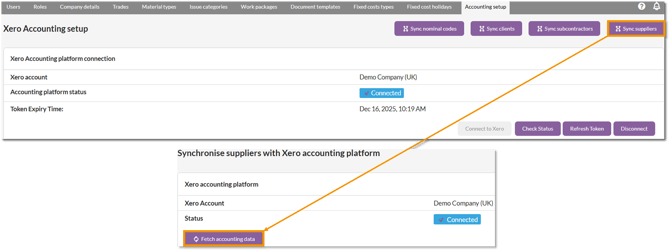
Bulk sync clients from Accounting setup:
- In Chalkstring, go to Admin > Accounting setup and click Sync clients.
- On the Sync Suppliers page, click Fetch accounting data. This will retrieve the latest supplier contact data from both Chalkstring and Xero and display a comparison.
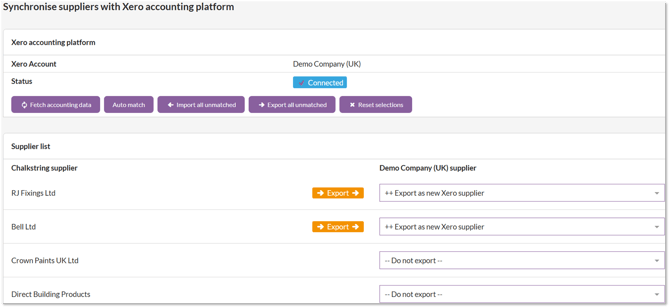
- The page is divided into two lists:
- Chalkstring suppliers that are not yet linked to any Xero contact (shown at the top).
- Xero customers that are not yet linked to any Chalkstring supplier (shown at the bottom).
- For each Chalkstring supplier in the top list, choose an action from the dropdown:
- Export as new Xero supplier – create this client in Xero as a new supplier contact.
- Link to existing Xero supplier – if a matching supplier exists in Xero, link to it.
- Leave unlinked – take no action for this supplier now.
- For each Xero supplier in the bottom list, you can choose:
- Import as new Chalkstring supplier– create a new supplier in Chalkstring using the Xero contact’s details.
- Leave unlinked – take no action for this Xero contact.
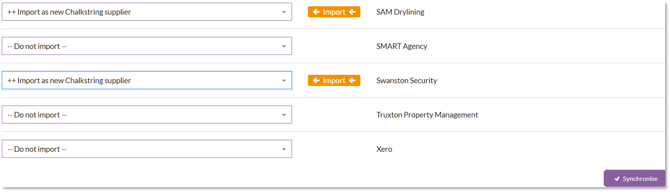
- Use the Auto match feature to automatically link records where the supplier name exactly matches in both systems.
- You can also use quick actions:
- Export all unmatched – mark all Chalkstring suppliers to be exported to Xero.
- Import all unmatched – mark all Xero suppliers to be imported into Chalkstring.
3. Once you’re satisfied with the linkage selections, click Synchronise. A confirmation dialog will display the list of actions (imports/exports) that will be performed. Confirm to proceed.
You can return to the Sync suppliers page at any time to manage new or updated clients.
The data sent as part of the sync includes: name, account reference, email address, telephone number, and address. Other offices and other contacts on the client record are not included in the sync.
Syncing from an individual client record:
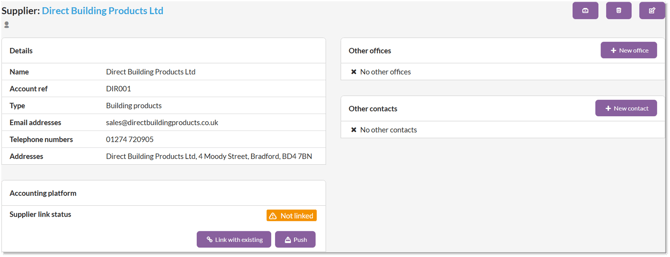
- Go to Contacts > Suppliers, and open a client record.
- The Accounting platform section displays the current sync status.
- Choose:
- Push – to create the supplier as a new contact in Xero.
- Link with existing – to connect to an existing Xero contact.
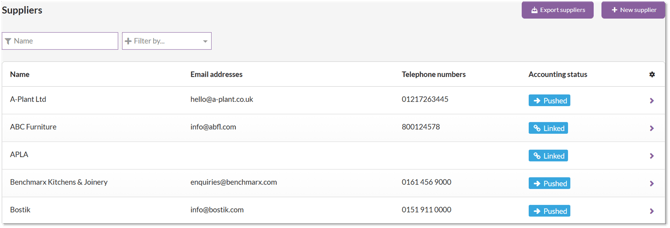
You can also view sync status at a glance in the Suppliers list. The Accounting status column shows whether a supplier is linked.
Broken links
If a supplier is linked to a Xero contact that has since been deleted or can’t be found, Chalkstring will display a Broken link warning. To fix: - Relink using the dropdown to select another contact - Or Push again to recreate the contact in Xero
Important considerations
-
This integration is one-way: Chalkstring pushes data to Xero, not the other way around.
-
If an incorrect contact is pushed, either fix it manually in both systems or void it in Xero, correct in Chalkstring, and push again.
-
Re-pushing will create a new contact entry in Xero — it does not overwrite.
