![Chalkstring Logo.png]](https://support.chalkstring.com/hs-fs/hubfs/Chalkstring%20Logo.png?height=40&name=Chalkstring%20Logo.png)
In this article
- CIS integration overview
- Enabling CIS in Xero
- Setting up subcontractors for CIS in Xero
- Setting up nominal codes for CIS labour
CIS integration overview
If you work with CIS-registered subcontractors and want to push labour applications to Xero, you'll need to configure CIS settings in both Xero and Chalkstring.
CIS-related fields such as deduction rates and verification numbers cannot be pushed from Chalkstring, so these must be set up manually in Xero for each subcontractor.
Chalkstring pushes CIS labour application totals (gross, deduction, net) to Xero, but does not send underlying verification details or subcontractor tax settings. These must be managed in Xero separately.
Enabling CIS in Xero
- In Xero, go to Accounting> Accounting Settings > Financial Settings
- In the Construction Industry Scheme section, tick the relevant boxes (registered contractor and/or registered subcontractor) and complete the associated fields including your UTR, Accounts Office Reference and Employer's PAYE Reference.
-
Click Save.
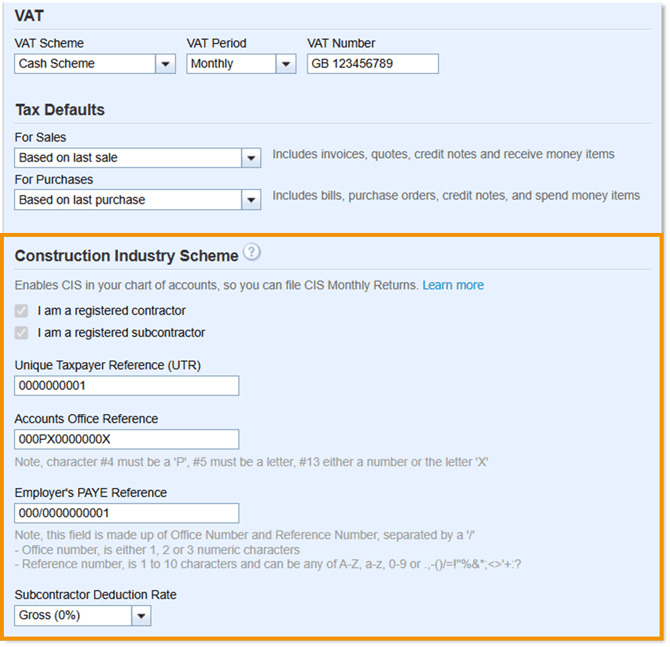
Once enabled, Xero will allow you to assign CIS roles to contacts and apply CIS deductions to bills.
Setting up subcontractors for CIS in Xero
Each subcontractor that you intend to pay under CIS needs to have their CIS details recorded in Xero. Chalkstring cannot push these details (CIS rate, UTR, etc.), so you’ll enter them in Xero manually for each subcontractor contact.
- In Xero click Contacts > All Contacts, click the required contact record and click Edit.
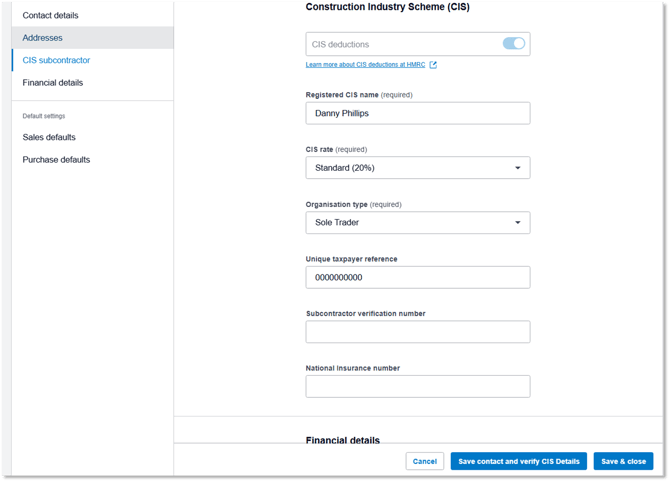
- In the edit view, look at the left side menu (the contact edit form is sectioned). Find and select the CIS Subcontractor section.
- Within the CIS Subcontractor section, check the option to Enable CIS deductions for this contact. Then fill in the subcontractor’s CIS details:
- Registered CIS Name (the name they’re registered under for CIS, if different).
- CIS Deduction Rate (e.g., 20% standard rate, 30% higher rate, or 0% gross if they’re gross status).
- Organisation type (sole trader, company, etc., depending on how HMRC categorizes them).
- Unique Taxpayer Reference (UTR) for the subcontractor.
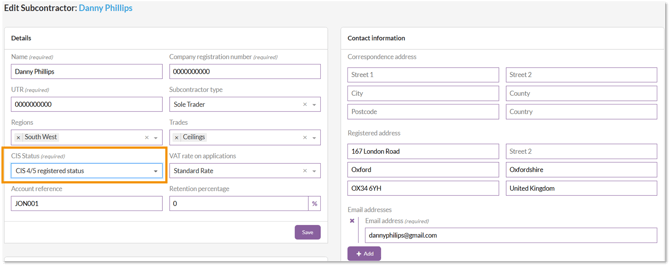
Make sure the CIS deduction rate you set in Xero for each subcontractor matches the CIS status recorded on the subcontractor’s record in Chalkstring. For example, if Chalkstring shows a subcontractor as 20% (Standard) CIS, ensure you have them set to 20% in Xero.
This consistency is important so that when a labour application is pushed, Xero calculates the correct deduction.
Setting up nominal codes for CIS labour
For Xero to calculate CIS deductions correctly, labour costs must be posted to an account that is flagged for CIS in Xero's chart of accounts.
By default, Xero’s standard chart of accounts includes 321 – CIS Labour Expense (or a similar account) which is flagged for CIS. Chalkstring needs to use that account (or any account you designate for CIS costs) for labour application lines.
In Chalkstring, you need to ensure you have a nominal code that is linked to this Xero account. If you don't already have one, you can either import it from Xero using the Sync nominal codes page (see article Linking Nominal Codes With Xero) or create a new nominal code in Chalkstring and link it to the Xero account.
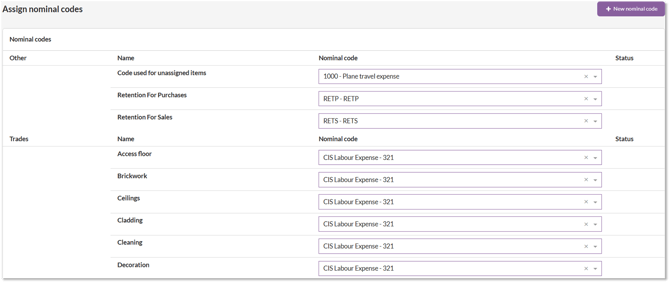
This ensures that when labour applications are pushed to Xero, the costs are posted to the correct account and CIS deductions are calculated automatically.